<p><img class="alignnone size-full wp-image-2838" src="https://flowgenius.in/wp-content/uploads/2025/12/Blog-1-How-to-Use-n8n-to-Sync-Databases-2-1024x576.png" alt="" /></p>
<p style="text-align: center;">Learn how to use n8n to sync databases easily using this step-by-step beginner guide.</p>
<p> </p>
<hr />
<p> </p>
<p style="margin-bottom: 2em; line-height: 1.9;"><strong>Who this is for:</strong> Developers, founders, and data teams who need to keep two or more databases in sync — across MySQL, PostgreSQL, MongoDB, and Google Sheets – using n8n workflows, without writing backend scripts or maintaining cron jobs manually.</p>
<hr style="margin: 55px 0;" />
<h2 style="margin-bottom: 45px; line-height: 1.3;">Quick Diagnosis: Why Your Sync Breaks?</h2>
<ol style="margin-bottom: 2em; line-height: 1.9;">
<li><strong>Not using UPSERT:</strong> plain INSERT fails on duplicate IDs. Use <code>ON DUPLICATE KEY UPDATE</code> (MySQL) or <code>ON CONFLICT DO UPDATE</code> (PostgreSQL).</li>
<li><strong>Syncing the full table every run:</strong> filter by <code>updated_at > lastSyncTime</code> to only process changed rows.</li>
<li><strong>No timestamp column:</strong> without <code>updated_at</code>, you cannot detect changes. Add one before building the sync.</li>
<li><strong>Timezone mismatch:</strong> one DB stores UTC, another stores local time. Normalize everything to UTC in the transformation step.</li>
<li><strong>Skipping the Compare Datasets node:</strong> this is n8n’s built-in change detector. Use it instead of writing comparison logic from scratch.</li>
</ol>
<hr style="margin: 55px 0;" />
<h2 style="margin-bottom: 45px; line-height: 1.3;">What You’ll Learn?</h2>
<ul style="margin-bottom: 2em; line-height: 1.9;">
<li>How to use n8n to sync databases (one-way and two-way)</li>
<li>How to detect only new or updated rows using incremental sync</li>
<li>How to use the <strong>Compare Datasets node</strong> — n8n’s most powerful sync tool</li>
<li>How to persist the last sync timestamp using <code>$getWorkflowStaticData</code></li>
<li>How to prevent duplicates with UPSERT queries</li>
<li>How to handle schema differences between databases</li>
<li>How to handle large tables with <strong>SplitInBatches</strong></li>
<li>How to handle deletes and soft deletes</li>
<li>How to normalize timezones to prevent silent sync failures</li>
<li>How to trigger sync in real-time via webhook (not just cron)</li>
<li>All database combinations: MySQL, PostgreSQL, MongoDB, Google Sheets</li>
<li>Real-world use cases with workflow structure</li>
</ul>
<hr style="margin: 55px 0;" />
<h2 style="margin-bottom: 45px; line-height: 1.3;">Full Sync vs Incremental Sync – Which One to Use?</h2>
<p style="margin-bottom: 2em; line-height: 1.9;">Before building anything, this decision determines the performance and reliability of your entire workflow. Most tutorials skip it. Do not skip it.</p>
<table style="border-collapse: collapse; width: 100%; margin-bottom: 2em;">
<thead>
<tr>
<th style="border: 1px solid #ddd; padding: 12px;">Type</th>
<th style="border: 1px solid #ddd; padding: 12px;">How It Works</th>
<th style="border: 1px solid #ddd; padding: 12px;">Use When</th>
<th style="border: 1px solid #ddd; padding: 12px;">Risk</th>
</tr>
</thead>
<tbody>
<tr>
<td style="border: 1px solid #ddd; padding: 12px;"><strong>Full sync</strong></td>
<td style="border: 1px solid #ddd; padding: 12px;">Fetch every row, compare, overwrite</td>
<td style="border: 1px solid #ddd; padding: 12px;">Initial data load, small tables (< 500 rows), periodic reconciliation</td>
<td style="border: 1px solid #ddd; padding: 12px;">Slow and expensive on large tables</td>
</tr>
<tr>
<td style="border: 1px solid #ddd; padding: 12px;"><strong>Incremental sync</strong></td>
<td style="border: 1px solid #ddd; padding: 12px;">Fetch only rows changed since the last run using <code>updated_at</code></td>
<td style="border: 1px solid #ddd; padding: 12px;">Ongoing sync on any table size</td>
<td style="border: 1px solid #ddd; padding: 12px;">Misses rows if <code>updated_at</code> is not maintained</td>
</tr>
<tr>
<td style="border: 1px solid #ddd; padding: 12px;"><strong>Hash-based sync</strong></td>
<td style="border: 1px solid #ddd; padding: 12px;">Hash each row’s fields and compare against stored hashes</td>
<td style="border: 1px solid #ddd; padding: 12px;">No timestamps available, need to detect any change</td>
<td style="border: 1px solid #ddd; padding: 12px;">Requires processing the full dataset each run</td>
</tr>
<tr>
<td style="border: 1px solid #ddd; padding: 12px;"><strong>Real-time (webhook)</strong></td>
<td style="border: 1px solid #ddd; padding: 12px;">Source DB fires a trigger → n8n webhook receives it instantly</td>
<td style="border: 1px solid #ddd; padding: 12px;">Zero-latency sync requirements</td>
<td style="border: 1px solid #ddd; padding: 12px;">Requires DB trigger support and public n8n URL</td>
</tr>
</tbody>
</table>
<blockquote style="margin: 2em 0; padding-left: 1em; border-left: 4px solid #ddd; font-style: italic;">
<p style="margin-bottom: 0; line-height: 1.9;"><strong>Rule of thumb:</strong> Start with incremental sync for any table over 200 rows. Run a full sync once per day as a reconciliation job to catch any rows that were missed during incremental runs.</p>
</blockquote>
<hr style="margin: 55px 0;" />
<h2 style="margin-bottom: 45px; line-height: 1.3;">Step 1: Set Up Your n8n Environment</h2>
<p style="margin-bottom: 2em; line-height: 1.9;">Before syncing anything, set up n8n.</p>
<h3 style="margin-bottom: 25px; line-height: 1.3;">How-To?</h3>
<ul style="margin-bottom: 2em; line-height: 1.9;">
<li>Go to <strong>n8n.io</strong></li>
<li>Create a free cloud account OR install self-hosted via Docker</li>
<li>Open your dashboard and click <strong>“New Workflow”</strong></li>
</ul>
<h3 style="margin-bottom: 25px; line-height: 1.3;">Pro Tip</h3>
<p style="margin-bottom: 2em; line-height: 1.9;">If you are syncing production databases, always use a self-hosted instance. Cloud versions have execution limits and your raw database credentials leave your infrastructure. Self-hosted n8n on Docker gives you full control.</p>
<h3 style="margin-bottom: 25px; line-height: 1.3;">Common Mistake</h3>
<p style="margin-bottom: 2em; line-height: 1.9;">People skip enabling SSL connections on database credentials. Every production database credential in n8n should have SSL enabled. Unencrypted database connections over public networks expose all synced data in plaintext.</p>
<hr style="margin: 55px 0;" />
<h2 style="margin-bottom: 45px; line-height: 1.3;">Step 2: Add Your Database Credentials</h2>
<p style="margin-bottom: 2em; line-height: 1.9;">Go to <strong>Settings → Credentials → New</strong> in n8n and add a credential for each database you plan to sync.</p>
<h3 style="margin-bottom: 25px; line-height: 1.3;">MySQL Credentials</h3>
<pre style="background: #fafafa; padding: 20px; border: 1px solid #e0e0e0; overflow: auto;">Host: your-host
Port: 3306
User: your-user
Password: your-password
Database: your-db
SSL: enabled (recommended for production)
</pre>
<h3 style="margin-bottom: 25px; line-height: 1.3;">PostgreSQL Credentials</h3>
<pre style="background: #fafafa; padding: 20px; border: 1px solid #e0e0e0; overflow: auto;">Host: your-host
Port: 5432
User: your-user
Password: your-password
Database: your-db
SSL: enabled (recommended for production)
</pre>
<h3 style="margin-bottom: 25px; line-height: 1.3;">MongoDB Example URI</h3>
<pre style="background: #fafafa; padding: 20px; border: 1px solid #e0e0e0; overflow: auto;">mongodb+srv://user:password@cluster.mongodb.net/?retryWrites=true&w=majority
</pre>
<h3 style="margin-bottom: 25px; line-height: 1.3;">Google Sheets Credentials</h3>
<p style="margin-bottom: 2em; line-height: 1.9;">Export your Google Service Account JSON from the Google Cloud Console and paste it into the n8n Google Sheets credential. Alternatively, use OAuth2 for personal accounts.</p>
<blockquote style="margin: 2em 0; padding-left: 1em; border-left: 4px solid #ddd; font-style: italic;">
<p style="margin-bottom: 0; line-height: 1.9;"><strong>Important:</strong> Test every credential with the built-in “Test Connection” button before building your workflow. A credential that looks correct but fails silently will cause every sync to produce zero rows with no error — one of the hardest problems to debug.</p>
</blockquote>
<hr style="margin: 55px 0;" />
<h2 style="margin-bottom: 45px; line-height: 1.3;">Step 3: Fetch Data from the Source Database</h2>
<p style="margin-bottom: 2em; line-height: 1.9;">The source database is where data originates. Finish the <a href="https://flowgenius.in/n8n-mongodb-integration-guide/"><strong>n8n MongoDB Integration Guide</strong></a> if you are working with MongoDB before continuing.</p>
<p style="margin-bottom: 2em; line-height: 1.9;">Choose the correct node for your source: <strong>MySQL Node</strong>, <strong>Postgres Node</strong>, or <strong>MongoDB Node</strong>. Set Operation to <strong>Execute Query</strong>.</p>
<h3 style="margin-bottom: 25px; line-height: 1.3;">Basic SELECT Query (Full Sync)</h3>
<pre style="background: #fafafa; padding: 20px; border: 1px solid #e0e0e0; overflow: auto;">SELECT * FROM users;
</pre>
<h3 style="margin-bottom: 25px; line-height: 1.3;">Incremental SELECT Query (Recommended)</h3>
<pre style="background: #fafafa; padding: 20px; border: 1px solid #e0e0e0; overflow: auto;">SELECT * FROM users
WHERE updated_at > '{{ $json.lastSyncTimestamp }}'
ORDER BY updated_at ASC;
</pre>
<p style="margin-bottom: 2em; line-height: 1.9;">The <code>lastSyncTimestamp</code> value comes from a Code node that reads your workflow’s static data — covered in Step 3A below. Filtering by <code>updated_at</code> means you only process rows that actually changed since the last run. On a table with 100,000 rows, this can reduce each sync from 10,000 rows to 12.</p>
<p><!-- ===================================================================== NEW: Step 3A — Persisting lastSyncTimestamp with Static Data ===================================================================== --></p>
<hr style="margin: 55px 0;" />
<h3 style="margin-bottom: 25px; line-height: 1.3;">Step 3A: Persist the Last Sync Timestamp (Critical for Incremental Sync)</h3>
<p style="margin-bottom: 2em; line-height: 1.9;">This is the step almost every tutorial skips, and it is the reason most incremental syncs eventually break. You need to remember when the last sync ran so the next run knows where to pick up from. n8n provides <code>$getWorkflowStaticData('global')</code> for exactly this — it persists data between workflow executions without a separate database.</p>
<p style="margin-bottom: 2em; line-height: 1.9;"><strong>Add a Code node as the very first node after your Schedule Trigger:</strong></p>
<pre style="background: #fafafa; padding: 20px; border: 1px solid #e0e0e0; overflow: auto;">// Code node — read last sync timestamp
const staticData = $getWorkflowStaticData('global');
// Default: 24 hours ago if this is the first run
const defaultStart = new Date();
defaultStart.setHours(defaultStart.getHours() - 24);
const lastSync = staticData.lastSyncTimestamp || defaultStart.toISOString();
return [{ json: { lastSyncTimestamp: lastSync } }];
</pre>
<p style="margin-bottom: 2em; line-height: 1.9;"><strong>Add another Code node at the very end of your workflow to save the new timestamp:</strong></p>
<pre style="background: #fafafa; padding: 20px; border: 1px solid #e0e0e0; overflow: auto;">// Code node — save sync timestamp after successful completion
const staticData = $getWorkflowStaticData('global');
staticData.lastSyncTimestamp = new Date().toISOString();
return [{ json: { syncCompleted: true, savedAt: staticData.lastSyncTimestamp } }];
</pre>
<blockquote style="margin: 2em 0; padding-left: 1em; border-left: 4px solid #ddd; font-style: italic;">
<p style="margin-bottom: 0; line-height: 1.9;"><strong>Critical:</strong> Only save the timestamp in the final node, after all inserts and updates have completed successfully. If you save it at the start and the workflow errors halfway through, the next run will skip all the rows that failed.</p>
</blockquote>
<hr style="margin: 55px 0;" />
<h2 style="margin-bottom: 45px; line-height: 1.3;">Step 4: Process the Data – Transform Fields Between Schemas</h2>
<p style="margin-bottom: 2em; line-height: 1.9;">If the source and target databases have different column names, data types, or structures, transform the data before writing. Use the <strong>Edit Fields (Set) node</strong> for simple remapping or a <strong>Code node</strong> for complex transformations.</p>
<h3 style="margin-bottom: 25px; line-height: 1.3;">Simple Field Remapping (Edit Fields Node)</h3>
<p style="margin-bottom: 2em; line-height: 1.9;">In the Edit Fields node, set:</p>
<ul style="margin-bottom: 2em; line-height: 1.9;">
<li><code>name</code> → <code>{{ $json.full_name }}</code></li>
<li><code>email</code> → <code>{{ $json.email_address }}</code></li>
<li><code>updated_at</code> → <code>{{ $json.updated_at }}</code></li>
</ul>
<h3 style="margin-bottom: 25px; line-height: 1.3;">Complex Transformation (Code Node)</h3>
<pre style="background: #fafafa; padding: 20px; border: 1px solid #e0e0e0; overflow: auto;">return items.map(item => {
return {
json: {
id: item.json.id,
name: item.json.full_name, // rename field
email: item.json.email,
updated_at: item.json.updated_at,
is_active: item.json.status === 1 // convert integer to boolean
}
};
});
</pre>
<hr style="margin: 55px 0;" />
<p> </p>
<p><!-- ===================================================================== NEW: Timezone Normalization ===================================================================== --></p>
<h3 style="margin-bottom: 25px; line-height: 1.3;">Step 4A: Normalize Timezones to UTC (Prevents Silent Sync Failures)</h3>
<p style="margin-bottom: 2em; line-height: 1.9;">This is the most common cause of “records keep re-syncing even though nothing changed.” One database stores timestamps in UTC, another in local time. The comparison sees different values and re-writes the row on every single run.</p>
<p style="margin-bottom: 2em; line-height: 1.9;">Add this inside your Code/transform node to normalize all timestamps to UTC ISO format before comparison or writing:</p>
<pre style="background: #fafafa; padding: 20px; border: 1px solid #e0e0e0; overflow: auto;">return items.map(item => {
return {
json: {
...item.json,
// Convert any timestamp to UTC ISO format regardless of source timezone
updated_at: new Date(item.json.updated_at).toISOString(),
created_at: new Date(item.json.created_at).toISOString()
}
};
});
</pre>
<hr style="margin: 55px 0;" />
<h3 style="margin-bottom: 25px; line-height: 1.3;">Step 4B: Handle NULL vs Empty String (Prevents Infinite Re-Sync)</h3>
<p style="margin-bottom: 2em; line-height: 1.9;">MySQL and PostgreSQL treat <code>NULL</code> and <code>''</code> (empty string) differently. If a field is <code>NULL</code> in the source but gets written as <code>''</code> in the target, the Compare Datasets node will flag it as “different” on every single run, creating an infinite sync loop. Normalize these before comparing:</p>
<pre style="background: #fafafa; padding: 20px; border: 1px solid #e0e0e0; overflow: auto;">return items.map(item => {
const normalized = {};
for (const [key, value] of Object.entries(item.json)) {
// Treat empty string as null for consistent comparison
normalized[key] = value === '' ? null : value;
}
return { json: normalized };
});
</pre>
<hr style="margin: 55px 0;" />
<h2 style="margin-bottom: 45px; line-height: 1.3;">Step 5: Insert or Update Data in the Target Database</h2>
<p style="margin-bottom: 2em; line-height: 1.9;">This is where the sync happens. Always use UPSERT – never plain INSERT. Rectify any <a href="https://flowgenius.in/n8n-postgresql-connection-not-working/"><strong>PostgreSQL connection errors</strong></a> before continuing.</p>
<h3 style="margin-bottom: 25px; line-height: 1.3;">MySQL UPSERT</h3>
<pre style="background: #fafafa; padding: 20px; border: 1px solid #e0e0e0; overflow: auto;">INSERT INTO users (id, name, email, updated_at)
VALUES ({{ $json.id }}, '{{ $json.name }}', '{{ $json.email }}', '{{ $json.updated_at }}')
ON DUPLICATE KEY UPDATE
name = VALUES(name),
email = VALUES(email),
updated_at = VALUES(updated_at);
</pre>
<h3 style="margin-bottom: 25px; line-height: 1.3;">PostgreSQL UPSERT</h3>
<pre style="background: #fafafa; padding: 20px; border: 1px solid #e0e0e0; overflow: auto;">INSERT INTO users (id, name, email, updated_at)
VALUES ($1, $2, $3, $4)
ON CONFLICT (id) DO UPDATE SET
name = EXCLUDED.name,
email = EXCLUDED.email,
updated_at = EXCLUDED.updated_at;
</pre>
<h3 style="margin-bottom: 25px; line-height: 1.3;">MongoDB Upsert</h3>
<p style="margin-bottom: 2em; line-height: 1.9;">In the MongoDB node, set Operation to <strong>Update</strong>, enable <strong>Upsert: true</strong>, and set your filter field to <code>id</code> or <code>_id</code>. This creates the document if it does not exist and updates it if it does.</p>
<h3 style="margin-bottom: 25px; line-height: 1.3;">Google Sheets Sync</h3>
<p style="margin-bottom: 2em; line-height: 1.9;">Use the Google Sheets node with Operation set to <strong>Append or Update Row</strong>. Set the column to match on (e.g., <code>id</code>) so n8n updates existing rows instead of appending duplicates.</p>
<hr style="margin: 55px 0;" />
<p><!-- ===================================================================== NEW: Compare Datasets Node — the biggest missing piece ===================================================================== --></p>
<h2 style="margin-bottom: 45px; line-height: 1.3;">Step 5A: Use the Compare Datasets Node — n8n’s Most Powerful Sync Tool</h2>
<p style="margin-bottom: 2em; line-height: 1.9;">This node is the single biggest thing missing from most n8n sync tutorials. Instead of writing custom comparison logic in Code nodes, the <strong>Compare Datasets node</strong> does it automatically. It takes two data streams, compares them field by field, and outputs exactly four categories:</p>
<table style="border-collapse: collapse; width: 100%; margin-bottom: 2em;">
<thead>
<tr>
<th style="border: 1px solid #ddd; padding: 12px;">Output Branch</th>
<th style="border: 1px solid #ddd; padding: 12px;">What It Contains</th>
<th style="border: 1px solid #ddd; padding: 12px;">What to Do With It</th>
</tr>
</thead>
<tbody>
<tr>
<td style="border: 1px solid #ddd; padding: 12px;"><strong>In A only</strong></td>
<td style="border: 1px solid #ddd; padding: 12px;">Rows that exist in source but not in target</td>
<td style="border: 1px solid #ddd; padding: 12px;">INSERT into target</td>
</tr>
<tr>
<td style="border: 1px solid #ddd; padding: 12px;"><strong>In B only</strong></td>
<td style="border: 1px solid #ddd; padding: 12px;">Rows that exist in target but not in source</td>
<td style="border: 1px solid #ddd; padding: 12px;">DELETE from target (or flag for review)</td>
</tr>
<tr>
<td style="border: 1px solid #ddd; padding: 12px;"><strong>Same</strong></td>
<td style="border: 1px solid #ddd; padding: 12px;">Rows that match exactly in both</td>
<td style="border: 1px solid #ddd; padding: 12px;">Skip — no action needed</td>
</tr>
<tr>
<td style="border: 1px solid #ddd; padding: 12px;"><strong>Different</strong></td>
<td style="border: 1px solid #ddd; padding: 12px;">Rows that exist in both but have changed values</td>
<td style="border: 1px solid #ddd; padding: 12px;">UPDATE in target</td>
</tr>
</tbody>
</table>
<hr style="margin: 55px 0;" />
<h3 style="margin-bottom: 25px; line-height: 1.3;">How to Configure It?</h3>
<ol style="margin-bottom: 2em; line-height: 1.9;">
<li>Query your <strong>source database</strong> → connect to Input A of the Compare Datasets node.</li>
<li>Query your <strong>target database</strong> → connect to Input B of the Compare Datasets node.</li>
<li>In <strong>Fields to Match</strong>, enter your primary key field (e.g., <code>id</code>).</li>
<li>In <strong>Fields to Skip Comparing</strong>, add any fields you want to ignore (e.g., <code>created_at</code> which never changes).</li>
<li>Connect each output branch to the appropriate database write node.</li>
</ol>
<hr style="margin: 55px 0;" />
<h3 style="margin-bottom: 25px; line-height: 1.3;">Full Workflow Pattern with Compare Datasets</h3>
<pre style="background: #fafafa; padding: 20px; border: 1px solid #e0e0e0; overflow: auto;">Schedule Trigger
│
├── MySQL Node (source) ──────────────┐
│ ↓
└── MySQL Node (target) ──── Compare Datasets Node
│
┌───────────────┼───────────────┐
↓ ↓ ↓
"In A only" "Different" "In B only"
INSERT into UPDATE in DELETE from
target target target
</pre>
<blockquote style="margin: 2em 0; padding-left: 1em; border-left: 4px solid #ddd; font-style: italic;">
<p style="margin-bottom: 0; line-height: 1.9;"><strong>Pro tip:</strong> The “In B only” branch (rows in target but not source) should not automatically delete in production. Route it to a Slack alert or a review table first. Automatic deletes have caused real data loss for teams who misconfigured the match key.</p>
</blockquote>
<hr style="margin: 55px 0;" />
<h2 style="margin-bottom: 45px; line-height: 1.3;">Step 6: Build One-Way Sync – All Combinations</h2>
<p style="margin-bottom: 2em; line-height: 1.9;">Below is how one-way sync works for every major database pair.</p>
<table style="border-collapse: collapse; width: 100%; margin-bottom: 2em;">
<thead>
<tr>
<th style="border: 1px solid #ddd; padding: 12px;">Source → Target</th>
<th style="border: 1px solid #ddd; padding: 12px;">Recommended Nodes</th>
<th style="border: 1px solid #ddd; padding: 12px;">Key Consideration</th>
</tr>
</thead>
<tbody>
<tr>
<td style="border: 1px solid #ddd; padding: 12px;">MySQL → MySQL</td>
<td style="border: 1px solid #ddd; padding: 12px;">MySQL → MySQL</td>
<td style="border: 1px solid #ddd; padding: 12px;">Easiest sync — same schema format</td>
</tr>
<tr>
<td style="border: 1px solid #ddd; padding: 12px;">MySQL → PostgreSQL</td>
<td style="border: 1px solid #ddd; padding: 12px;">MySQL → Edit Fields → Postgres</td>
<td style="border: 1px solid #ddd; padding: 12px;">Map TINYINT(1) → BOOLEAN; convert DATETIME to ISO timestamp</td>
</tr>
<tr>
<td style="border: 1px solid #ddd; padding: 12px;">PostgreSQL → MySQL</td>
<td style="border: 1px solid #ddd; padding: 12px;">Postgres → Edit Fields → MySQL</td>
<td style="border: 1px solid #ddd; padding: 12px;">Watch BOOLEAN fields — PostgreSQL TRUE/FALSE vs MySQL 1/0</td>
</tr>
<tr>
<td style="border: 1px solid #ddd; padding: 12px;">PostgreSQL → PostgreSQL</td>
<td style="border: 1px solid #ddd; padding: 12px;">Postgres → Postgres</td>
<td style="border: 1px solid #ddd; padding: 12px;">Straightforward — use ON CONFLICT DO UPDATE</td>
</tr>
<tr>
<td style="border: 1px solid #ddd; padding: 12px;">MongoDB → MySQL</td>
<td style="border: 1px solid #ddd; padding: 12px;">MongoDB → Code → MySQL</td>
<td style="border: 1px solid #ddd; padding: 12px;">Flatten nested JSON objects into SQL columns in the Code node</td>
</tr>
<tr>
<td style="border: 1px solid #ddd; padding: 12px;">MySQL → Google Sheets</td>
<td style="border: 1px solid #ddd; padding: 12px;">MySQL → Google Sheets</td>
<td style="border: 1px solid #ddd; padding: 12px;">Use Append or Update Row — Google Sheets API rate limit: 60 requests/minute</td>
</tr>
<tr>
<td style="border: 1px solid #ddd; padding: 12px;">PostgreSQL → MongoDB</td>
<td style="border: 1px solid #ddd; padding: 12px;">Postgres → Code → MongoDB</td>
<td style="border: 1px solid #ddd; padding: 12px;">Wrap flat SQL rows in a JSON document structure in the Code node</td>
</tr>
<tr>
<td style="border: 1px solid #ddd; padding: 12px;">MongoDB → PostgreSQL</td>
<td style="border: 1px solid #ddd; padding: 12px;">MongoDB → Code → Postgres</td>
<td style="border: 1px solid #ddd; padding: 12px;">Convert ObjectId to UUID or VARCHAR before inserting</td>
</tr>
</tbody>
</table>
<h3 style="margin-bottom: 25px; line-height: 1.3;">Pro Tip</h3>
<p style="margin-bottom: 2em; line-height: 1.9;">Always log the synced record count using a final Code node that writes to a lightweight log table: <code>INSERT INTO sync_log (run_at, rows_synced) VALUES (NOW(), {{ $items().length }});</code>. When something breaks at 2 AM, the log table is the first place you look.</p>
<hr style="margin: 55px 0;" />
<h2 style="margin-bottom: 45px; line-height: 1.3;">Step 7: Build Two-Way Sync</h2>
<p style="margin-bottom: 2em; line-height: 1.9;">Two-way sync means both databases can be written to independently, and both stay aligned. It requires careful design to avoid conflicts and sync loops.</p>
<h3 style="margin-bottom: 25px; line-height: 1.3;">Basic Logic</h3>
<pre style="background: #fafafa; padding: 20px; border: 1px solid #e0e0e0; overflow: auto;">IF updated_at_source > updated_at_target
overwrite target with source
ELSE IF updated_at_target > updated_at_source
overwrite source with target
ELSE
skip (identical timestamps — no change)
</pre>
<h3 style="margin-bottom: 25px; line-height: 1.3;">How-To</h3>
<ol style="margin-bottom: 2em; line-height: 1.9;">
<li>Read from Database A</li>
<li>Read from Database B</li>
<li>Feed both into the <strong>Compare Datasets node</strong> (match on primary key)</li>
<li>For the “Different” branch: use an IF node to compare <code>updated_at</code> timestamps and route to the correct write node</li>
<li>For the “In A only” branch: INSERT into B</li>
<li>For the “In B only” branch: INSERT into A</li>
<li>Store the last sync time using <code>$getWorkflowStaticData</code></li>
</ol>
<h3 style="margin-bottom: 25px; line-height: 1.3;">Conflict Resolution Code Node</h3>
<pre style="background: #fafafa; padding: 20px; border: 1px solid #e0e0e0; overflow: auto;">// Placed after the "Different" branch of Compare Datasets
// Determines which version wins based on updated_at timestamp
const sourceTime = new Date($json.source.updated_at).getTime();
const targetTime = new Date($json.target.updated_at).getTime();
if (sourceTime > targetTime) {
return [{ json: { ...$json.source, action: 'update_target' } }];
} else if (targetTime > sourceTime) {
return [{ json: { ...$json.target, action: 'update_source' } }];
} else {
// Timestamps identical — skip
return [];
}
</pre>
<h3 style="margin-bottom: 25px; line-height: 1.3;">Prevent Sync Loops</h3>
<p style="margin-bottom: 2em; line-height: 1.9;">A sync loop happens when Database A writes to Database B, which triggers another sync back to Database A, which triggers another sync to B — infinitely. Prevent this by adding a <strong>sync_source</strong> column to each table:</p>
<pre style="background: #fafafa; padding: 20px; border: 1px solid #e0e0e0; overflow: auto;">-- Add to both tables
ALTER TABLE users ADD COLUMN sync_source VARCHAR(20) DEFAULT 'local';
-- When n8n writes a row, mark it as synced
UPDATE users SET sync_source = 'n8n_sync' WHERE id = $1;
-- In your SELECT query, only fetch rows written locally (not by n8n)
SELECT * FROM users
WHERE sync_source = 'local'
AND updated_at > '{{ $json.lastSyncTimestamp }}';
</pre>
<hr style="margin: 55px 0;" />
<p><!-- ===================================================================== NEW: SplitInBatches for large tables ===================================================================== --></p>
<h2 style="margin-bottom: 45px; line-height: 1.3;">Step 7A: Handle Large Tables with SplitInBatches</h2>
<p style="margin-bottom: 2em; line-height: 1.9;">If your source table returns thousands of rows, processing them all in one n8n execution will time out or exhaust memory. The <strong>SplitInBatches node</strong> solves this by chunking the data into smaller groups and looping through them.</p>
<h3 style="margin-bottom: 25px; line-height: 1.3;">Workflow Pattern</h3>
<pre style="background: #fafafa; padding: 20px; border: 1px solid #e0e0e0; overflow: auto;">Schedule Trigger
│
├── Code node (read lastSyncTimestamp)
│
├── MySQL node (fetch changed rows)
│
├── SplitInBatches node (Batch Size: 100)
│ │
│ ├── Edit Fields node (transform)
│ │
│ ├── PostgreSQL node (UPSERT)
│ │
│ └── [loop back to SplitInBatches until done]
│
└── Code node (save lastSyncTimestamp)
</pre>
<h3 style="margin-bottom: 25px; line-height: 1.3;">Recommended Batch Sizes</h3>
<table style="border-collapse: collapse; width: 100%; margin-bottom: 2em;">
<thead>
<tr>
<th style="border: 1px solid #ddd; padding: 12px;">Target Database</th>
<th style="border: 1px solid #ddd; padding: 12px;">Recommended Batch Size</th>
<th style="border: 1px solid #ddd; padding: 12px;">Reason</th>
</tr>
</thead>
<tbody>
<tr>
<td style="border: 1px solid #ddd; padding: 12px;">MySQL</td>
<td style="border: 1px solid #ddd; padding: 12px;">100–500 rows</td>
<td style="border: 1px solid #ddd; padding: 12px;">Fast writes, handles larger batches well</td>
</tr>
<tr>
<td style="border: 1px solid #ddd; padding: 12px;">PostgreSQL</td>
<td style="border: 1px solid #ddd; padding: 12px;">100–250 rows</td>
<td style="border: 1px solid #ddd; padding: 12px;">Stable under concurrent load</td>
</tr>
<tr>
<td style="border: 1px solid #ddd; padding: 12px;">MongoDB</td>
<td style="border: 1px solid #ddd; padding: 12px;">50–100 rows</td>
<td style="border: 1px solid #ddd; padding: 12px;">Documents are larger than SQL rows</td>
</tr>
<tr>
<td style="border: 1px solid #ddd; padding: 12px;">Google Sheets</td>
<td style="border: 1px solid #ddd; padding: 12px;">10–50 rows</td>
<td style="border: 1px solid #ddd; padding: 12px;">API rate limit: 60 requests/minute — batch carefully</td>
</tr>
</tbody>
</table>
<hr style="margin: 55px 0;" />
<p><!-- ===================================================================== NEW: Handling Deletes ===================================================================== --></p>
<h2 style="margin-bottom: 45px; line-height: 1.3;">Step 7B: Handle Deletes and Soft Deletes</h2>
<p style="margin-bottom: 2em; line-height: 1.9;">Incremental sync with <code>updated_at</code> filters only detects rows that changed. It does not detect rows that were deleted from the source — because deleted rows are gone and cannot be queried. There are two production patterns to handle this.</p>
<h3 style="margin-bottom: 25px; line-height: 1.3;">Option 1: Soft Deletes (Recommended)</h3>
<p style="margin-bottom: 2em; line-height: 1.9;">Instead of deleting rows, mark them with a <code>deleted_at</code> timestamp. Your sync workflow picks these up naturally because the row’s <code>updated_at</code> changes when you set <code>deleted_at</code>. The target database mirrors the soft delete.</p>
<pre style="background: #fafafa; padding: 20px; border: 1px solid #e0e0e0; overflow: auto;">-- Source DB: soft delete instead of hard delete
UPDATE users
SET deleted_at = NOW(), updated_at = NOW()
WHERE id = 42;
-- n8n query picks this up automatically on next incremental run
SELECT * FROM users
WHERE updated_at > '{{ $json.lastSyncTimestamp }}';
-- In the target DB UPSERT, mirror the soft delete
INSERT INTO users (id, name, email, deleted_at, updated_at)
VALUES ($1, $2, $3, $4, $5)
ON CONFLICT (id) DO UPDATE SET
deleted_at = EXCLUDED.deleted_at,
updated_at = EXCLUDED.updated_at;
</pre>
<h3 style="margin-bottom: 25px; line-height: 1.3;">Option 2: Full Reconciliation (Daily)</h3>
<p style="margin-bottom: 2em; line-height: 1.9;">Run a full sync once per day using the Compare Datasets node. The “In B only” branch gives you rows that exist in the target but not the source — these are your hard deletes. Route this branch to your delete/archive logic. Run this in addition to your incremental sync, not instead of it.</p>
<hr style="margin: 55px 0;" />
<h2 style="margin-bottom: 45px; line-height: 1.3;">Step 8: Schedule the Sync Automatically</h2>
<p style="margin-bottom: 2em; line-height: 1.9;">Use the <strong>Schedule Trigger node</strong> (formerly Cron node). Set it to <strong>Interval</strong> mode for simple recurring syncs.</p>
<table style="border-collapse: collapse; width: 100%; margin-bottom: 2em;">
<thead>
<tr>
<th style="border: 1px solid #ddd; padding: 12px;">Database</th>
<th style="border: 1px solid #ddd; padding: 12px;">Recommended Frequency</th>
<th style="border: 1px solid #ddd; padding: 12px;">Notes</th>
</tr>
</thead>
<tbody>
<tr>
<td style="border: 1px solid #ddd; padding: 12px;">MySQL</td>
<td style="border: 1px solid #ddd; padding: 12px;">Every 1–5 minutes</td>
<td style="border: 1px solid #ddd; padding: 12px;">Fast transactions — incremental sync is cheap</td>
</tr>
<tr>
<td style="border: 1px solid #ddd; padding: 12px;">PostgreSQL</td>
<td style="border: 1px solid #ddd; padding: 12px;">Every 5 minutes</td>
<td style="border: 1px solid #ddd; padding: 12px;">Stable and handles concurrent connections well</td>
</tr>
<tr>
<td style="border: 1px solid #ddd; padding: 12px;">MongoDB</td>
<td style="border: 1px solid #ddd; padding: 12px;">Every 10 minutes</td>
<td style="border: 1px solid #ddd; padding: 12px;">Heavier documents — allow time between batches</td>
</tr>
<tr>
<td style="border: 1px solid #ddd; padding: 12px;">Google Sheets</td>
<td style="border: 1px solid #ddd; padding: 12px;">Every 15 minutes</td>
<td style="border: 1px solid #ddd; padding: 12px;">API rate limit enforces this minimum in practice</td>
</tr>
</tbody>
</table>
<p><!-- ===================================================================== NEW: Real-time webhook-triggered sync ===================================================================== --></p>
<hr style="margin: 55px 0;" />
<h3 style="margin-bottom: 25px; line-height: 1.3;">Step 8A: Real-Time Sync via Webhook Trigger</h3>
<p style="margin-bottom: 2em; line-height: 1.9;">For zero-latency requirements, replace the Schedule Trigger with a <strong>Webhook node</strong>. Configure a database trigger in your source database that fires an HTTP POST to your n8n webhook URL whenever a row is inserted or updated. n8n processes only that one changed row immediately — no polling, no delay.</p>
<pre style="background: #fafafa; padding: 20px; border: 1px solid #e0e0e0; overflow: auto;">-- PostgreSQL trigger example: fires webhook on any row change
-- Step 1: Create a function that sends the changed row to n8n
CREATE OR REPLACE FUNCTION notify_n8n_webhook()
RETURNS TRIGGER AS $$
DECLARE
payload JSON;
BEGIN
payload = row_to_json(NEW);
PERFORM net.http_post(
url := 'https://your-n8n-instance.com/webhook/db-sync',
body := payload::text,
headers := '{"Content-Type": "application/json"}'
);
RETURN NEW;
END;
$$ LANGUAGE plpgsql;
-- Step 2: Attach trigger to your table
CREATE TRIGGER users_sync_trigger
AFTER INSERT OR UPDATE ON users
FOR EACH ROW EXECUTE FUNCTION notify_n8n_webhook();
</pre>
<blockquote style="margin: 2em 0; padding-left: 1em; border-left: 4px solid #ddd; font-style: italic;">
<p style="margin-bottom: 0; line-height: 1.9;"><strong>Note:</strong> The <code>net.http_post</code> function requires the <code>pg_net</code> extension. For standard PostgreSQL without extensions, use a lightweight external listener (like a Node.js service) that watches for DB events and forwards them to your n8n webhook.</p>
</blockquote>
<hr style="margin: 55px 0;" />
<p><!-- ===================================================================== NEW: Error Handling ===================================================================== --></p>
<h2 style="margin-bottom: 45px; line-height: 1.3;">Step 8B: Add Error Handling – Never Lose a Sync Silently</h2>
<p style="margin-bottom: 2em; line-height: 1.9;">Without error handling, a sync that fails halfway through leaves your databases partially out of sync with no indication anything went wrong. Add these three things to every production sync workflow.</p>
<h3 style="margin-bottom: 25px; line-height: 1.3;">1. Enable “Continue on Fail” on Write Nodes</h3>
<p style="margin-bottom: 2em; line-height: 1.9;">On each database write node (MySQL, Postgres, MongoDB), open Settings and enable <strong>Continue on Fail</strong>. This means one bad row does not kill the entire batch — the workflow continues and logs the failure instead of stopping.</p>
<h3 style="margin-bottom: 25px; line-height: 1.3;">2. Set Up an Error Workflow</h3>
<p style="margin-bottom: 2em; line-height: 1.9;">In n8n, go to <strong>Settings → Error Workflow</strong> and select a separate workflow that sends a Slack or email alert when any workflow fails. This gives you immediate notification without polling logs.</p>
<h3 style="margin-bottom: 25px; line-height: 1.3;">3. Log Failed Rows</h3>
<pre style="background: #fafafa; padding: 20px; border: 1px solid #e0e0e0; overflow: auto;">// Code node — after "Continue on Fail" enabled on write node
// Captures any rows that failed and logs them
const failed = items.filter(item => item.json.error);
const succeeded = items.filter(item => !item.json.error);
if (failed.length > 0) {
// You can write these to a sync_errors table or send to Slack
console.log(`Sync completed: ${succeeded.length} rows ok, ${failed.length} failed`);
console.log('Failed rows:', JSON.stringify(failed.map(i => i.json)));
}
return [{ json: { succeeded: succeeded.length, failed: failed.length } }];
</pre>
<hr style="margin: 55px 0;" />
<h2 style="margin-bottom: 45px; line-height: 1.3;">Step 9: Test Your Full Workflow</h2>
<p style="margin-bottom: 2em; line-height: 1.9;">Testing is not optional. A sync that appears to work on 10 rows can silently corrupt data on 10,000.</p>
<h3 style="margin-bottom: 25px; line-height: 1.3;">Test Checklist</h3>
<ul style="margin-bottom: 2em; line-height: 1.9;">
<li>[ ] Test with a small dataset (10–20 rows) before enabling on production tables</li>
<li>[ ] Verify <code>updated_at</code> timestamps are being picked up correctly</li>
<li>[ ] Insert a new row in the source – confirm it appears in the target</li>
<li>[ ] Update an existing row in the source – confirm the target reflects the change</li>
<li>[ ] Check for duplicates in the target after two consecutive runs</li>
<li>[ ] Check for timezone mismatch: insert a row at midnight and verify the <code>updated_at</code> comparison works</li>
<li>[ ] Test both directions (for two-way sync)</li>
<li>[ ] Verify the <code>lastSyncTimestamp</code> is being saved correctly after each run</li>
<li>[ ] Confirm error handling catches and logs bad rows without stopping the entire batch</li>
</ul>
<hr style="margin: 55px 0;" />
<h2 style="margin-bottom: 45px; line-height: 1.3;">Complete Workflow Reference: Node by Node</h2>
<table style="border-collapse: collapse; width: 100%; margin-bottom: 2em;">
<thead>
<tr>
<th style="border: 1px solid #ddd; padding: 12px;">Node</th>
<th style="border: 1px solid #ddd; padding: 12px;">What It Does</th>
<th style="border: 1px solid #ddd; padding: 12px;">Key Setting</th>
</tr>
</thead>
<tbody>
<tr>
<td style="border: 1px solid #ddd; padding: 12px;">Schedule Trigger</td>
<td style="border: 1px solid #ddd; padding: 12px;">Starts the workflow on a fixed interval</td>
<td style="border: 1px solid #ddd; padding: 12px;">Set interval to match your sync frequency</td>
</tr>
<tr>
<td style="border: 1px solid #ddd; padding: 12px;">Code node (read timestamp)</td>
<td style="border: 1px solid #ddd; padding: 12px;">Reads <code>lastSyncTimestamp</code> from static data</td>
<td style="border: 1px solid #ddd; padding: 12px;"><code>$getWorkflowStaticData('global')</code></td>
</tr>
<tr>
<td style="border: 1px solid #ddd; padding: 12px;">Source DB Node</td>
<td style="border: 1px solid #ddd; padding: 12px;">Fetches only changed rows from Database A</td>
<td style="border: 1px solid #ddd; padding: 12px;"><code>WHERE updated_at > lastSyncTimestamp</code></td>
</tr>
<tr>
<td style="border: 1px solid #ddd; padding: 12px;">Target DB Node</td>
<td style="border: 1px solid #ddd; padding: 12px;">Fetches current state of Database B (for comparison)</td>
<td style="border: 1px solid #ddd; padding: 12px;">Full select or filtered by same IDs</td>
</tr>
<tr>
<td style="border: 1px solid #ddd; padding: 12px;">Compare Datasets Node</td>
<td style="border: 1px solid #ddd; padding: 12px;">Splits rows into 4 output branches</td>
<td style="border: 1px solid #ddd; padding: 12px;">Fields to Match: <code>id</code></td>
</tr>
<tr>
<td style="border: 1px solid #ddd; padding: 12px;">Edit Fields / Code Node</td>
<td style="border: 1px solid #ddd; padding: 12px;">Transforms schema, normalizes timezones, handles NULLs</td>
<td style="border: 1px solid #ddd; padding: 12px;">UTC normalization, NULL → null</td>
</tr>
<tr>
<td style="border: 1px solid #ddd; padding: 12px;">SplitInBatches Node</td>
<td style="border: 1px solid #ddd; padding: 12px;">Chunks large result sets into manageable groups</td>
<td style="border: 1px solid #ddd; padding: 12px;">Batch Size: 100 (adjust per DB)</td>
</tr>
<tr>
<td style="border: 1px solid #ddd; padding: 12px;">Target DB Write Node</td>
<td style="border: 1px solid #ddd; padding: 12px;">UPSERT into Database B</td>
<td style="border: 1px solid #ddd; padding: 12px;">Continue on Fail: enabled</td>
</tr>
<tr>
<td style="border: 1px solid #ddd; padding: 12px;">Reverse DB Write Node</td>
<td style="border: 1px solid #ddd; padding: 12px;">UPSERT into Database A (two-way sync only)</td>
<td style="border: 1px solid #ddd; padding: 12px;">Continue on Fail: enabled</td>
</tr>
<tr>
<td style="border: 1px solid #ddd; padding: 12px;">Code node (save timestamp)</td>
<td style="border: 1px solid #ddd; padding: 12px;">Saves <code>lastSyncTimestamp</code> after all writes complete</td>
<td style="border: 1px solid #ddd; padding: 12px;"><code>staticData.lastSyncTimestamp = new Date().toISOString()</code></td>
</tr>
</tbody>
</table>
<hr style="margin: 55px 0;" />
<h2 style="margin-bottom: 45px; line-height: 1.3;">Real Use-Cases</h2>
<h3 style="margin-bottom: 25px; line-height: 1.3;">1. Sync MySQL ERP to PostgreSQL Analytics</h3>
<p style="margin-bottom: 2em; line-height: 1.9;"><strong>Problem:</strong> ERP runs on MySQL but the BI dashboard queries PostgreSQL.<br />
<strong>Solution:</strong> Incremental sync every 5 minutes using <code>updated_at</code>. Edit Fields node converts MySQL <code>TINYINT(1)</code> boolean fields to PostgreSQL <code>BOOLEAN</code> before the UPSERT.<br />
<strong>Result:</strong> BI dashboard always has data less than 5 minutes stale without any manual exports.</p>
<h3 style="margin-bottom: 25px; line-height: 1.3;">2. Sync PostgreSQL Production to MySQL Legacy System</h3>
<p style="margin-bottom: 2em; line-height: 1.9;"><strong>Problem:</strong> Production moved to PostgreSQL but an old reporting tool still requires MySQL.<br />
<strong>Solution:</strong> One-way incremental sync every 5 minutes. The legacy system stays alive without anyone touching it.<br />
<strong>Result:</strong> Zero migration effort, zero downtime for the legacy tool.</p>
<h3 style="margin-bottom: 25px; line-height: 1.3;">3. Sync MongoDB Leads to MySQL CRM</h3>
<p style="margin-bottom: 2em; line-height: 1.9;"><strong>Problem:</strong> Leads are captured in MongoDB (document format) but the sales CRM runs MySQL (relational).<br />
<strong>Solution:</strong> A Code node flattens the MongoDB document fields into SQL columns. UPSERT inserts new leads and updates existing ones.<br />
<strong>Result:</strong> Sales team works in MySQL CRM with live lead data — no CSV exports needed.</p>
<h3 style="margin-bottom: 25px; line-height: 1.3;">4. Sync MySQL Sales Data to Google Sheets Dashboard</h3>
<p style="margin-bottom: 2em; line-height: 1.9;"><strong>Problem:</strong> Management wants a live Google Sheets dashboard without anyone manually exporting CSVs.<br />
<strong>Solution:</strong> Incremental sync every 15 minutes using Append or Update Row. SplitInBatches keeps the Google Sheets API rate limits from being hit.<br />
<strong>Result:</strong> Always-current spreadsheet, zero manual work.</p>
<h3 style="margin-bottom: 25px; line-height: 1.3;">5. Two-Way Sync Between Two PostgreSQL Databases</h3>
<p style="margin-bottom: 2em; line-height: 1.9;"><strong>Problem:</strong> Two remote office teams write to separate PostgreSQL instances that must stay aligned.<br />
<strong>Solution:</strong> Two-way sync using Compare Datasets node + timestamp-based conflict resolution. The <code>sync_source</code> column prevents sync loops.<br />
<strong>Result:</strong> Both offices always work with current data. Last-write-wins conflict resolution with no data loss.</p>
<hr style="margin: 55px 0;" />
<h2 style="margin-bottom: 45px; line-height: 1.3;">Workflow Snapshot</h2>
<p style="margin-bottom: 2em; line-height: 1.9;">Your final production n8n workflow structure:</p>
<ul style="margin-bottom: 2em; line-height: 1.9;">
<li>Step 1 → Schedule Trigger (every 5 minutes)</li>
<li>Step 2 → Code node: read <code>lastSyncTimestamp</code></li>
<li>Step 3 → Source DB: fetch rows changed since last sync</li>
<li>Step 4 → Target DB: fetch current state (for Compare Datasets)</li>
<li>Step 5 → Compare Datasets node: detect new / changed / deleted</li>
<li>Step 6 → Edit Fields / Code node: transform + normalize</li>
<li>Step 7 → SplitInBatches: chunk into 100-row groups</li>
<li>Step 8 → Target DB write: UPSERT (Continue on Fail: on)</li>
<li>Step 9 → Source DB write: UPSERT (two-way sync only)</li>
<li>Step 10 → Code node: save <code>lastSyncTimestamp</code></li>
</ul>
<p><img class="alignnone size-large wp-image-2828" src="https://flowgenius.in/wp-content/uploads/2025/12/Screenshot-2025-12-10-093641-1.png" alt="Workflow Setup in n8n to Sync Databases" /></p>
<p style="text-align: center;">Workflow Setup in n8n to Sync Databases</p>
<hr style="margin: 55px 0;" />
<h2 style="margin-bottom: 45px; line-height: 1.3;">Frequently Asked Questions</h2>
<h3 style="margin-bottom: 20px; line-height: 1.3;">Q. Can I use n8n to sync databases in real time?</h3>
<p style="margin-bottom: 2em; line-height: 1.9;">Yes. Use a <strong>Webhook Trigger node</strong> instead of a Schedule Trigger. Configure a database trigger on your source database that fires an HTTP POST to your n8n webhook URL on every INSERT or UPDATE. n8n processes only that single changed row immediately — no polling interval, no delay. See Step 8A above for the full PostgreSQL trigger implementation.</p>
<h3 style="margin-bottom: 20px; line-height: 1.3;">Q. How do I sync only new or updated rows — not the entire table?</h3>
<p style="margin-bottom: 2em; line-height: 1.9;">Add a <code>WHERE updated_at > lastSyncTimestamp</code> filter to your source query. Persist the <code>lastSyncTimestamp</code> between workflow runs using <code>$getWorkflowStaticData('global')</code> in a Code node. Save the new timestamp at the end of each successful run. Full implementation is in Step 3A above.</p>
<h3 style="margin-bottom: 20px; line-height: 1.3;">Q. How do I prevent duplicate rows when syncing with n8n?</h3>
<p style="margin-bottom: 2em; line-height: 1.9;">Always use UPSERT instead of plain INSERT. For MySQL, use <code>ON DUPLICATE KEY UPDATE</code>. For PostgreSQL, use <code>ON CONFLICT (id) DO UPDATE SET</code>. For MongoDB, enable <code>Upsert: true</code> in the MongoDB node. For Google Sheets, use the <strong>Append or Update Row</strong> operation with a match column set to your primary key.</p>
<h3 style="margin-bottom: 20px; line-height: 1.3;">Q. What is the Compare Datasets node and when should I use it?</h3>
<p style="margin-bottom: 2em; line-height: 1.9;">The Compare Datasets node takes two data streams, compares them field by field on a key you specify, and outputs four branches: rows only in source, rows only in target, rows that match exactly, and rows that differ. Use it whenever you need to detect what actually changed between two databases without writing comparison logic yourself. It eliminates the most common sync bug — re-writing rows that have not actually changed.</p>
<h3 style="margin-bottom: 20px; line-height: 1.3;">Q. How do I handle records deleted from the source database?</h3>
<p style="margin-bottom: 2em; line-height: 1.9;">Incremental sync with <code>updated_at</code> does not detect hard deletes — deleted rows cannot be queried. Use soft deletes: add a <code>deleted_at</code> column and set it instead of deleting the row. The <code>updated_at</code> timestamp changes, your incremental sync picks it up, and the target mirrors the soft delete. For hard deletes, run a daily full sync using the Compare Datasets node — the “In B only” output gives you rows that exist in the target but not the source.</p>
<h3 style="margin-bottom: 20px; line-height: 1.3;">Q. My records keep re-syncing even though nothing changed. What is causing this?</h3>
<p style="margin-bottom: 2em; line-height: 1.9;">There are two common causes. First, a timezone mismatch — one database stores UTC and another stores local time, so the comparison always sees different values. Fix this by normalizing all timestamps to UTC ISO format in your transform step. Second, NULL vs empty string inconsistency — a field that is <code>NULL</code> in the source gets written as <code>''</code> in the target, causing Compare Datasets to flag it as different every run. Fix this by normalizing both to <code>null</code> in your Code node before comparison.</p>
<h3 style="margin-bottom: 20px; line-height: 1.3;">Q. How do I sync MySQL and PostgreSQL with different data types?</h3>
<p style="margin-bottom: 2em; line-height: 1.9;">Add an Edit Fields or Code node between the source query and the target write. Common conversions: MySQL <code>TINYINT(1)</code> → PostgreSQL <code>BOOLEAN</code> using <code>value === 1</code>; MySQL <code>DATETIME</code> → PostgreSQL <code>TIMESTAMP WITH TIME ZONE</code> using <code>new Date(value).toISOString()</code>; PostgreSQL arrays → MySQL JSON using <code>JSON.stringify(value)</code>.</p>
<hr style="margin: 55px 0;" />
<h3 style="margin-bottom: 45px; line-height: 1.3;">Conclusion</h3>
<p style="margin-bottom: 2em; line-height: 1.9;">Syncing databases used to require hours of coding, custom scripts, and constant debugging. With n8n, you can build a complete one-way or two-way database sync without writing a backend or maintaining cron jobs manually.</p>
<p style="margin-bottom: 2em; line-height: 1.9;">The difference between a sync workflow that works for a week and one that runs reliably for years comes down to five things: using incremental sync with <code>$getWorkflowStaticData</code> to persist the timestamp, using the Compare Datasets node to detect exactly what changed, normalizing timezones and NULL values before comparison, using SplitInBatches on any table over 500 rows, and enabling Continue on Fail with an Error Workflow so failures surface immediately instead of silently corrupting your data.</p>
<p style="margin-bottom: 2em; line-height: 1.9;">Start with a one-way incremental sync on a single table, verify it runs cleanly for a week, then add the two-way logic. Every pattern in this guide is production-tested. Your data can stay in sync forever with minimal maintenance.</p>
<p style="margin-bottom: 2em; line-height: 1.9;"><em>All instructions target n8n v1.85+ (self-hosted Docker and n8n Cloud). Database patterns tested against MySQL 8, PostgreSQL 15, MongoDB 7, and Google Sheets API v4.</em></p>
Learn how to use n8n to sync databases easily using this step-by-step beginner guide.
Who this is for: Developers, founders, and data teams who need to keep two or more databases in sync — across MySQL, PostgreSQL, MongoDB, and Google Sheets – using n8n workflows, without writing backend scripts or maintaining cron jobs manually.
Quick Diagnosis: Why Your Sync Breaks?
- Not using UPSERT: plain INSERT fails on duplicate IDs. Use
ON DUPLICATE KEY UPDATE (MySQL) or ON CONFLICT DO UPDATE (PostgreSQL).
- Syncing the full table every run: filter by
updated_at > lastSyncTime to only process changed rows.
- No timestamp column: without
updated_at, you cannot detect changes. Add one before building the sync.
- Timezone mismatch: one DB stores UTC, another stores local time. Normalize everything to UTC in the transformation step.
- Skipping the Compare Datasets node: this is n8n’s built-in change detector. Use it instead of writing comparison logic from scratch.
What You’ll Learn?
- How to use n8n to sync databases (one-way and two-way)
- How to detect only new or updated rows using incremental sync
- How to use the Compare Datasets node — n8n’s most powerful sync tool
- How to persist the last sync timestamp using
$getWorkflowStaticData
- How to prevent duplicates with UPSERT queries
- How to handle schema differences between databases
- How to handle large tables with SplitInBatches
- How to handle deletes and soft deletes
- How to normalize timezones to prevent silent sync failures
- How to trigger sync in real-time via webhook (not just cron)
- All database combinations: MySQL, PostgreSQL, MongoDB, Google Sheets
- Real-world use cases with workflow structure
Full Sync vs Incremental Sync – Which One to Use?
Before building anything, this decision determines the performance and reliability of your entire workflow. Most tutorials skip it. Do not skip it.
| Type |
How It Works |
Use When |
Risk |
| Full sync |
Fetch every row, compare, overwrite |
Initial data load, small tables (< 500 rows), periodic reconciliation |
Slow and expensive on large tables |
| Incremental sync |
Fetch only rows changed since the last run using updated_at |
Ongoing sync on any table size |
Misses rows if updated_at is not maintained |
| Hash-based sync |
Hash each row’s fields and compare against stored hashes |
No timestamps available, need to detect any change |
Requires processing the full dataset each run |
| Real-time (webhook) |
Source DB fires a trigger → n8n webhook receives it instantly |
Zero-latency sync requirements |
Requires DB trigger support and public n8n URL |
Rule of thumb: Start with incremental sync for any table over 200 rows. Run a full sync once per day as a reconciliation job to catch any rows that were missed during incremental runs.
Step 1: Set Up Your n8n Environment
Before syncing anything, set up n8n.
How-To?
- Go to n8n.io
- Create a free cloud account OR install self-hosted via Docker
- Open your dashboard and click “New Workflow”
Pro Tip
If you are syncing production databases, always use a self-hosted instance. Cloud versions have execution limits and your raw database credentials leave your infrastructure. Self-hosted n8n on Docker gives you full control.
Common Mistake
People skip enabling SSL connections on database credentials. Every production database credential in n8n should have SSL enabled. Unencrypted database connections over public networks expose all synced data in plaintext.
Step 2: Add Your Database Credentials
Go to Settings → Credentials → New in n8n and add a credential for each database you plan to sync.
MySQL Credentials
Host: your-host
Port: 3306
User: your-user
Password: your-password
Database: your-db
SSL: enabled (recommended for production)
PostgreSQL Credentials
Host: your-host
Port: 5432
User: your-user
Password: your-password
Database: your-db
SSL: enabled (recommended for production)
MongoDB Example URI
mongodb+srv://user:password@cluster.mongodb.net/?retryWrites=true&w=majority
Google Sheets Credentials
Export your Google Service Account JSON from the Google Cloud Console and paste it into the n8n Google Sheets credential. Alternatively, use OAuth2 for personal accounts.
Important: Test every credential with the built-in “Test Connection” button before building your workflow. A credential that looks correct but fails silently will cause every sync to produce zero rows with no error — one of the hardest problems to debug.
Step 3: Fetch Data from the Source Database
The source database is where data originates. Finish the n8n MongoDB Integration Guide if you are working with MongoDB before continuing.
Choose the correct node for your source: MySQL Node, Postgres Node, or MongoDB Node. Set Operation to Execute Query.
Basic SELECT Query (Full Sync)
SELECT * FROM users;
Incremental SELECT Query (Recommended)
SELECT * FROM users
WHERE updated_at > '{{ $json.lastSyncTimestamp }}'
ORDER BY updated_at ASC;
The lastSyncTimestamp value comes from a Code node that reads your workflow’s static data — covered in Step 3A below. Filtering by updated_at means you only process rows that actually changed since the last run. On a table with 100,000 rows, this can reduce each sync from 10,000 rows to 12.
Step 3A: Persist the Last Sync Timestamp (Critical for Incremental Sync)
This is the step almost every tutorial skips, and it is the reason most incremental syncs eventually break. You need to remember when the last sync ran so the next run knows where to pick up from. n8n provides $getWorkflowStaticData('global') for exactly this — it persists data between workflow executions without a separate database.
Add a Code node as the very first node after your Schedule Trigger:
// Code node — read last sync timestamp
const staticData = $getWorkflowStaticData('global');

// Default: 24 hours ago if this is the first run
const defaultStart = new Date();
defaultStart.setHours(defaultStart.getHours() - 24);

const lastSync = staticData.lastSyncTimestamp || defaultStart.toISOString();

return [{ json: { lastSyncTimestamp: lastSync } }];
Add another Code node at the very end of your workflow to save the new timestamp:
// Code node — save sync timestamp after successful completion
const staticData = $getWorkflowStaticData('global');
staticData.lastSyncTimestamp = new Date().toISOString();

return [{ json: { syncCompleted: true, savedAt: staticData.lastSyncTimestamp } }];
Critical: Only save the timestamp in the final node, after all inserts and updates have completed successfully. If you save it at the start and the workflow errors halfway through, the next run will skip all the rows that failed.
Step 4: Process the Data – Transform Fields Between Schemas
If the source and target databases have different column names, data types, or structures, transform the data before writing. Use the Edit Fields (Set) node for simple remapping or a Code node for complex transformations.
Simple Field Remapping (Edit Fields Node)
In the Edit Fields node, set:
name → {{ $json.full_name }}email → {{ $json.email_address }}updated_at → {{ $json.updated_at }}
Complex Transformation (Code Node)
return items.map(item => {
  return {
    json: {
      id:         item.json.id,
      name:       item.json.full_name,       // rename field
      email:      item.json.email,
      updated_at: item.json.updated_at,
      is_active:  item.json.status === 1     // convert integer to boolean
    }
  };
});
Step 4A: Normalize Timezones to UTC (Prevents Silent Sync Failures)
This is the most common cause of “records keep re-syncing even though nothing changed.” One database stores timestamps in UTC, another in local time. The comparison sees different values and re-writes the row on every single run.
Add this inside your Code/transform node to normalize all timestamps to UTC ISO format before comparison or writing:
return items.map(item => {
  return {
    json: {
      ...item.json,
      // Convert any timestamp to UTC ISO format regardless of source timezone
      updated_at: new Date(item.json.updated_at).toISOString(),
      created_at: new Date(item.json.created_at).toISOString()
    }
  };
});
Step 4B: Handle NULL vs Empty String (Prevents Infinite Re-Sync)
MySQL and PostgreSQL treat NULL and '' (empty string) differently. If a field is NULL in the source but gets written as '' in the target, the Compare Datasets node will flag it as “different” on every single run, creating an infinite sync loop. Normalize these before comparing:
return items.map(item => {
  const normalized = {};
  for (const [key, value] of Object.entries(item.json)) {
    // Treat empty string as null for consistent comparison
    normalized[key] = value === '' ? null : value;
  }
  return { json: normalized };
});
Step 5: Insert or Update Data in the Target Database
This is where the sync happens. Always use UPSERT – never plain INSERT. Rectify any PostgreSQL connection errors before continuing.
MySQL UPSERT
INSERT INTO users (id, name, email, updated_at)
VALUES ({{ $json.id }}, '{{ $json.name }}', '{{ $json.email }}', '{{ $json.updated_at }}')
ON DUPLICATE KEY UPDATE
  name       = VALUES(name),
  email      = VALUES(email),
  updated_at = VALUES(updated_at);
PostgreSQL UPSERT
INSERT INTO users (id, name, email, updated_at)
VALUES ($1, $2, $3, $4)
ON CONFLICT (id) DO UPDATE SET
  name       = EXCLUDED.name,
  email      = EXCLUDED.email,
  updated_at = EXCLUDED.updated_at;
MongoDB Upsert
In the MongoDB node, set Operation to Update, enable Upsert: true, and set your filter field to id or _id. This creates the document if it does not exist and updates it if it does.
Google Sheets Sync
Use the Google Sheets node with Operation set to Append or Update Row. Set the column to match on (e.g., id) so n8n updates existing rows instead of appending duplicates.
Step 5A: Use the Compare Datasets Node — n8n’s Most Powerful Sync Tool
This node is the single biggest thing missing from most n8n sync tutorials. Instead of writing custom comparison logic in Code nodes, the Compare Datasets node does it automatically. It takes two data streams, compares them field by field, and outputs exactly four categories:
| Output Branch |
What It Contains |
What to Do With It |
| In A only |
Rows that exist in source but not in target |
INSERT into target |
| In B only |
Rows that exist in target but not in source |
DELETE from target (or flag for review) |
| Same |
Rows that match exactly in both |
Skip — no action needed |
| Different |
Rows that exist in both but have changed values |
UPDATE in target |
How to Configure It?
- Query your source database → connect to Input A of the Compare Datasets node.
- Query your target database → connect to Input B of the Compare Datasets node.
- In Fields to Match, enter your primary key field (e.g.,
id).
- In Fields to Skip Comparing, add any fields you want to ignore (e.g.,
created_at which never changes).
- Connect each output branch to the appropriate database write node.
Full Workflow Pattern with Compare Datasets
Schedule Trigger
    │
    ├── MySQL Node (source) ──────────────┐
    │                                     ↓
    └── MySQL Node (target) ──── Compare Datasets Node
                                          │
                          ┌───────────────┼───────────────┐
                          ↓               ↓               ↓
                     "In A only"      "Different"     "In B only"
                    INSERT into       UPDATE in       DELETE from
                      target           target           target
Pro tip: The “In B only” branch (rows in target but not source) should not automatically delete in production. Route it to a Slack alert or a review table first. Automatic deletes have caused real data loss for teams who misconfigured the match key.
Step 6: Build One-Way Sync – All Combinations
Below is how one-way sync works for every major database pair.
| Source → Target |
Recommended Nodes |
Key Consideration |
| MySQL → MySQL |
MySQL → MySQL |
Easiest sync — same schema format |
| MySQL → PostgreSQL |
MySQL → Edit Fields → Postgres |
Map TINYINT(1) → BOOLEAN; convert DATETIME to ISO timestamp |
| PostgreSQL → MySQL |
Postgres → Edit Fields → MySQL |
Watch BOOLEAN fields — PostgreSQL TRUE/FALSE vs MySQL 1/0 |
| PostgreSQL → PostgreSQL |
Postgres → Postgres |
Straightforward — use ON CONFLICT DO UPDATE |
| MongoDB → MySQL |
MongoDB → Code → MySQL |
Flatten nested JSON objects into SQL columns in the Code node |
| MySQL → Google Sheets |
MySQL → Google Sheets |
Use Append or Update Row — Google Sheets API rate limit: 60 requests/minute |
| PostgreSQL → MongoDB |
Postgres → Code → MongoDB |
Wrap flat SQL rows in a JSON document structure in the Code node |
| MongoDB → PostgreSQL |
MongoDB → Code → Postgres |
Convert ObjectId to UUID or VARCHAR before inserting |
Pro Tip
Always log the synced record count using a final Code node that writes to a lightweight log table: INSERT INTO sync_log (run_at, rows_synced) VALUES (NOW(), {{ $items().length }});. When something breaks at 2 AM, the log table is the first place you look.
Step 7: Build Two-Way Sync
Two-way sync means both databases can be written to independently, and both stay aligned. It requires careful design to avoid conflicts and sync loops.
Basic Logic
IF updated_at_source > updated_at_target
   overwrite target with source
ELSE IF updated_at_target > updated_at_source
   overwrite source with target
ELSE
   skip (identical timestamps — no change)
How-To
- Read from Database A
- Read from Database B
- Feed both into the Compare Datasets node (match on primary key)
- For the “Different” branch: use an IF node to compare
updated_at timestamps and route to the correct write node
- For the “In A only” branch: INSERT into B
- For the “In B only” branch: INSERT into A
- Store the last sync time using
$getWorkflowStaticData
Conflict Resolution Code Node
// Placed after the "Different" branch of Compare Datasets
// Determines which version wins based on updated_at timestamp

const sourceTime = new Date($json.source.updated_at).getTime();
const targetTime = new Date($json.target.updated_at).getTime();

if (sourceTime > targetTime) {
  return [{ json: { ...$json.source, action: 'update_target' } }];
} else if (targetTime > sourceTime) {
  return [{ json: { ...$json.target, action: 'update_source' } }];
} else {
  // Timestamps identical — skip
  return [];
}
Prevent Sync Loops
A sync loop happens when Database A writes to Database B, which triggers another sync back to Database A, which triggers another sync to B — infinitely. Prevent this by adding a sync_source column to each table:
-- Add to both tables
ALTER TABLE users ADD COLUMN sync_source VARCHAR(20) DEFAULT 'local';

-- When n8n writes a row, mark it as synced
UPDATE users SET sync_source = 'n8n_sync' WHERE id = $1;

-- In your SELECT query, only fetch rows written locally (not by n8n)
SELECT * FROM users
WHERE sync_source = 'local'
AND updated_at > '{{ $json.lastSyncTimestamp }}';
Step 7A: Handle Large Tables with SplitInBatches
If your source table returns thousands of rows, processing them all in one n8n execution will time out or exhaust memory. The SplitInBatches node solves this by chunking the data into smaller groups and looping through them.
Workflow Pattern
Schedule Trigger
    │
    ├── Code node (read lastSyncTimestamp)
    │
    ├── MySQL node (fetch changed rows)
    │
    ├── SplitInBatches node (Batch Size: 100)
    │       │
    │       ├── Edit Fields node (transform)
    │       │
    │       ├── PostgreSQL node (UPSERT)
    │       │
    │       └── [loop back to SplitInBatches until done]
    │
    └── Code node (save lastSyncTimestamp)
Recommended Batch Sizes
| Target Database |
Recommended Batch Size |
Reason |
| MySQL |
100–500 rows |
Fast writes, handles larger batches well |
| PostgreSQL |
100–250 rows |
Stable under concurrent load |
| MongoDB |
50–100 rows |
Documents are larger than SQL rows |
| Google Sheets |
10–50 rows |
API rate limit: 60 requests/minute — batch carefully |
Step 7B: Handle Deletes and Soft Deletes
Incremental sync with updated_at filters only detects rows that changed. It does not detect rows that were deleted from the source — because deleted rows are gone and cannot be queried. There are two production patterns to handle this.
Option 1: Soft Deletes (Recommended)
Instead of deleting rows, mark them with a deleted_at timestamp. Your sync workflow picks these up naturally because the row’s updated_at changes when you set deleted_at. The target database mirrors the soft delete.
-- Source DB: soft delete instead of hard delete
UPDATE users
SET deleted_at = NOW(), updated_at = NOW()
WHERE id = 42;

-- n8n query picks this up automatically on next incremental run
SELECT * FROM users
WHERE updated_at > '{{ $json.lastSyncTimestamp }}';

-- In the target DB UPSERT, mirror the soft delete
INSERT INTO users (id, name, email, deleted_at, updated_at)
VALUES ($1, $2, $3, $4, $5)
ON CONFLICT (id) DO UPDATE SET
  deleted_at = EXCLUDED.deleted_at,
  updated_at = EXCLUDED.updated_at;
Option 2: Full Reconciliation (Daily)
Run a full sync once per day using the Compare Datasets node. The “In B only” branch gives you rows that exist in the target but not the source — these are your hard deletes. Route this branch to your delete/archive logic. Run this in addition to your incremental sync, not instead of it.
Step 8: Schedule the Sync Automatically
Use the Schedule Trigger node (formerly Cron node). Set it to Interval mode for simple recurring syncs.
| Database |
Recommended Frequency |
Notes |
| MySQL |
Every 1–5 minutes |
Fast transactions — incremental sync is cheap |
| PostgreSQL |
Every 5 minutes |
Stable and handles concurrent connections well |
| MongoDB |
Every 10 minutes |
Heavier documents — allow time between batches |
| Google Sheets |
Every 15 minutes |
API rate limit enforces this minimum in practice |
Step 8A: Real-Time Sync via Webhook Trigger
For zero-latency requirements, replace the Schedule Trigger with a Webhook node. Configure a database trigger in your source database that fires an HTTP POST to your n8n webhook URL whenever a row is inserted or updated. n8n processes only that one changed row immediately — no polling, no delay.
-- PostgreSQL trigger example: fires webhook on any row change
-- Step 1: Create a function that sends the changed row to n8n
CREATE OR REPLACE FUNCTION notify_n8n_webhook()
RETURNS TRIGGER AS $$
DECLARE
  payload JSON;
BEGIN
  payload = row_to_json(NEW);
  PERFORM net.http_post(
    url     := 'https://your-n8n-instance.com/webhook/db-sync',
    body    := payload::text,
    headers := '{"Content-Type": "application/json"}'
  );
  RETURN NEW;
END;
$$ LANGUAGE plpgsql;

-- Step 2: Attach trigger to your table
CREATE TRIGGER users_sync_trigger
AFTER INSERT OR UPDATE ON users
FOR EACH ROW EXECUTE FUNCTION notify_n8n_webhook();
Note: The net.http_post function requires the pg_net extension. For standard PostgreSQL without extensions, use a lightweight external listener (like a Node.js service) that watches for DB events and forwards them to your n8n webhook.
Step 8B: Add Error Handling – Never Lose a Sync Silently
Without error handling, a sync that fails halfway through leaves your databases partially out of sync with no indication anything went wrong. Add these three things to every production sync workflow.
1. Enable “Continue on Fail” on Write Nodes
On each database write node (MySQL, Postgres, MongoDB), open Settings and enable Continue on Fail. This means one bad row does not kill the entire batch — the workflow continues and logs the failure instead of stopping.
2. Set Up an Error Workflow
In n8n, go to Settings → Error Workflow and select a separate workflow that sends a Slack or email alert when any workflow fails. This gives you immediate notification without polling logs.
3. Log Failed Rows
// Code node — after "Continue on Fail" enabled on write node
// Captures any rows that failed and logs them

const failed = items.filter(item => item.json.error);
const succeeded = items.filter(item => !item.json.error);

if (failed.length > 0) {
  // You can write these to a sync_errors table or send to Slack
  console.log(`Sync completed: ${succeeded.length} rows ok, ${failed.length} failed`);
  console.log('Failed rows:', JSON.stringify(failed.map(i => i.json)));
}

return [{ json: { succeeded: succeeded.length, failed: failed.length } }];
Step 9: Test Your Full Workflow
Testing is not optional. A sync that appears to work on 10 rows can silently corrupt data on 10,000.
Test Checklist
- [ ] Test with a small dataset (10–20 rows) before enabling on production tables
- [ ] Verify
updated_at timestamps are being picked up correctly
- [ ] Insert a new row in the source – confirm it appears in the target
- [ ] Update an existing row in the source – confirm the target reflects the change
- [ ] Check for duplicates in the target after two consecutive runs
- [ ] Check for timezone mismatch: insert a row at midnight and verify the
updated_at comparison works
- [ ] Test both directions (for two-way sync)
- [ ] Verify the
lastSyncTimestamp is being saved correctly after each run
- [ ] Confirm error handling catches and logs bad rows without stopping the entire batch
Complete Workflow Reference: Node by Node
| Node |
What It Does |
Key Setting |
| Schedule Trigger |
Starts the workflow on a fixed interval |
Set interval to match your sync frequency |
| Code node (read timestamp) |
Reads lastSyncTimestamp from static data |
$getWorkflowStaticData('global') |
| Source DB Node |
Fetches only changed rows from Database A |
WHERE updated_at > lastSyncTimestamp |
| Target DB Node |
Fetches current state of Database B (for comparison) |
Full select or filtered by same IDs |
| Compare Datasets Node |
Splits rows into 4 output branches |
Fields to Match: id |
| Edit Fields / Code Node |
Transforms schema, normalizes timezones, handles NULLs |
UTC normalization, NULL → null |
| SplitInBatches Node |
Chunks large result sets into manageable groups |
Batch Size: 100 (adjust per DB) |
| Target DB Write Node |
UPSERT into Database B |
Continue on Fail: enabled |
| Reverse DB Write Node |
UPSERT into Database A (two-way sync only) |
Continue on Fail: enabled |
| Code node (save timestamp) |
Saves lastSyncTimestamp after all writes complete |
staticData.lastSyncTimestamp = new Date().toISOString() |
Real Use-Cases
1. Sync MySQL ERP to PostgreSQL Analytics
Problem: ERP runs on MySQL but the BI dashboard queries PostgreSQL.
Solution: Incremental sync every 5 minutes using updated_at. Edit Fields node converts MySQL TINYINT(1) boolean fields to PostgreSQL BOOLEAN before the UPSERT.
Result: BI dashboard always has data less than 5 minutes stale without any manual exports.
2. Sync PostgreSQL Production to MySQL Legacy System
Problem: Production moved to PostgreSQL but an old reporting tool still requires MySQL.
Solution: One-way incremental sync every 5 minutes. The legacy system stays alive without anyone touching it.
Result: Zero migration effort, zero downtime for the legacy tool.
3. Sync MongoDB Leads to MySQL CRM
Problem: Leads are captured in MongoDB (document format) but the sales CRM runs MySQL (relational).
Solution: A Code node flattens the MongoDB document fields into SQL columns. UPSERT inserts new leads and updates existing ones.
Result: Sales team works in MySQL CRM with live lead data — no CSV exports needed.
4. Sync MySQL Sales Data to Google Sheets Dashboard
Problem: Management wants a live Google Sheets dashboard without anyone manually exporting CSVs.
Solution: Incremental sync every 15 minutes using Append or Update Row. SplitInBatches keeps the Google Sheets API rate limits from being hit.
Result: Always-current spreadsheet, zero manual work.
5. Two-Way Sync Between Two PostgreSQL Databases
Problem: Two remote office teams write to separate PostgreSQL instances that must stay aligned.
Solution: Two-way sync using Compare Datasets node + timestamp-based conflict resolution. The sync_source column prevents sync loops.
Result: Both offices always work with current data. Last-write-wins conflict resolution with no data loss.
Workflow Snapshot
Your final production n8n workflow structure:
- Step 1 → Schedule Trigger (every 5 minutes)
- Step 2 → Code node: read
lastSyncTimestamp
- Step 3 → Source DB: fetch rows changed since last sync
- Step 4 → Target DB: fetch current state (for Compare Datasets)
- Step 5 → Compare Datasets node: detect new / changed / deleted
- Step 6 → Edit Fields / Code node: transform + normalize
- Step 7 → SplitInBatches: chunk into 100-row groups
- Step 8 → Target DB write: UPSERT (Continue on Fail: on)
- Step 9 → Source DB write: UPSERT (two-way sync only)
- Step 10 → Code node: save
lastSyncTimestamp
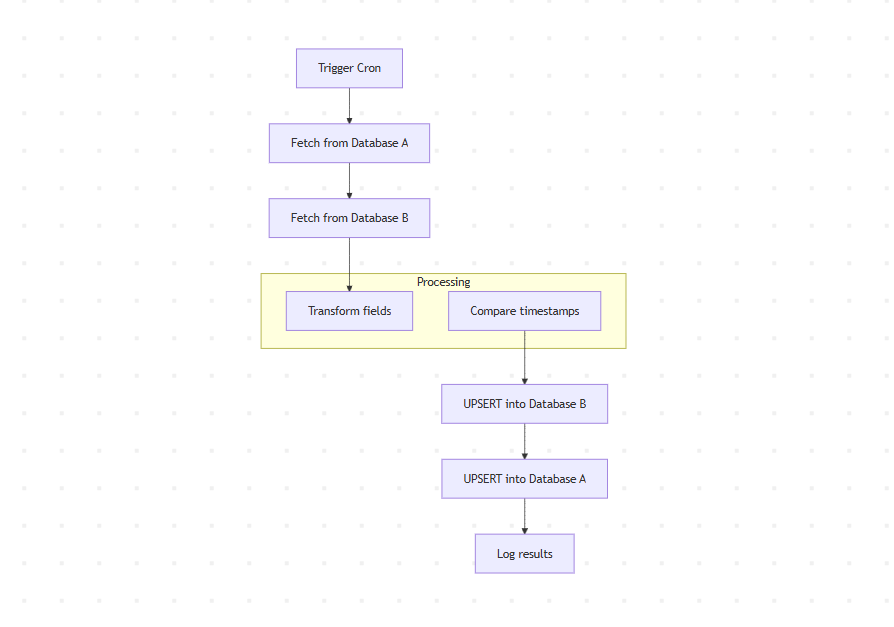
Workflow Setup in n8n to Sync Databases
Frequently Asked Questions
Q. Can I use n8n to sync databases in real time?
Yes. Use a Webhook Trigger node instead of a Schedule Trigger. Configure a database trigger on your source database that fires an HTTP POST to your n8n webhook URL on every INSERT or UPDATE. n8n processes only that single changed row immediately — no polling interval, no delay. See Step 8A above for the full PostgreSQL trigger implementation.
Q. How do I sync only new or updated rows — not the entire table?
Add a WHERE updated_at > lastSyncTimestamp filter to your source query. Persist the lastSyncTimestamp between workflow runs using $getWorkflowStaticData('global') in a Code node. Save the new timestamp at the end of each successful run. Full implementation is in Step 3A above.
Q. How do I prevent duplicate rows when syncing with n8n?
Always use UPSERT instead of plain INSERT. For MySQL, use ON DUPLICATE KEY UPDATE. For PostgreSQL, use ON CONFLICT (id) DO UPDATE SET. For MongoDB, enable Upsert: true in the MongoDB node. For Google Sheets, use the Append or Update Row operation with a match column set to your primary key.
Q. What is the Compare Datasets node and when should I use it?
The Compare Datasets node takes two data streams, compares them field by field on a key you specify, and outputs four branches: rows only in source, rows only in target, rows that match exactly, and rows that differ. Use it whenever you need to detect what actually changed between two databases without writing comparison logic yourself. It eliminates the most common sync bug — re-writing rows that have not actually changed.
Q. How do I handle records deleted from the source database?
Incremental sync with updated_at does not detect hard deletes — deleted rows cannot be queried. Use soft deletes: add a deleted_at column and set it instead of deleting the row. The updated_at timestamp changes, your incremental sync picks it up, and the target mirrors the soft delete. For hard deletes, run a daily full sync using the Compare Datasets node — the “In B only” output gives you rows that exist in the target but not the source.
Q. My records keep re-syncing even though nothing changed. What is causing this?
There are two common causes. First, a timezone mismatch — one database stores UTC and another stores local time, so the comparison always sees different values. Fix this by normalizing all timestamps to UTC ISO format in your transform step. Second, NULL vs empty string inconsistency — a field that is NULL in the source gets written as '' in the target, causing Compare Datasets to flag it as different every run. Fix this by normalizing both to null in your Code node before comparison.
Q. How do I sync MySQL and PostgreSQL with different data types?
Add an Edit Fields or Code node between the source query and the target write. Common conversions: MySQL TINYINT(1) → PostgreSQL BOOLEAN using value === 1; MySQL DATETIME → PostgreSQL TIMESTAMP WITH TIME ZONE using new Date(value).toISOString(); PostgreSQL arrays → MySQL JSON using JSON.stringify(value).
Conclusion
Syncing databases used to require hours of coding, custom scripts, and constant debugging. With n8n, you can build a complete one-way or two-way database sync without writing a backend or maintaining cron jobs manually.
The difference between a sync workflow that works for a week and one that runs reliably for years comes down to five things: using incremental sync with $getWorkflowStaticData to persist the timestamp, using the Compare Datasets node to detect exactly what changed, normalizing timezones and NULL values before comparison, using SplitInBatches on any table over 500 rows, and enabling Continue on Fail with an Error Workflow so failures surface immediately instead of silently corrupting your data.
Start with a one-way incremental sync on a single table, verify it runs cleanly for a week, then add the two-way logic. Every pattern in this guide is production-tested. Your data can stay in sync forever with minimal maintenance.
All instructions target n8n v1.85+ (self-hosted Docker and n8n Cloud). Database patterns tested against MySQL 8, PostgreSQL 15, MongoDB 7, and Google Sheets API v4.