Step by Step Guide for n8n MongoDB Authentication Failed Error
Who this is for: n8n users (self‑hosted or cloud) who need a reliable MongoDB connection for production workflows. For a complete overview of n8n MongoDB issues and how they interconnect, check out our Pillar Post on n8n MongoDB Complete Guide to see the full picture.
Quick Diagnosis
| Step | Action |
|---|---|
| 1 | Test the credentials with the MongoDB shell. |
| 2 | In n8n → Credentials → MongoDB, set Authentication Database to the DB that stores the user (usually admin). |
| 3 | Choose the correct Auth Mechanism (SCRAM‑SHA-256 for MongoDB 4.0+, SCRAM‑SHA‑1 for older). |
| 4 | Save and click Test. The error should disappear. |
If the test still fails, continue with the detailed troubleshooting below.
1. Why the “Authentication Failed” Error Happens
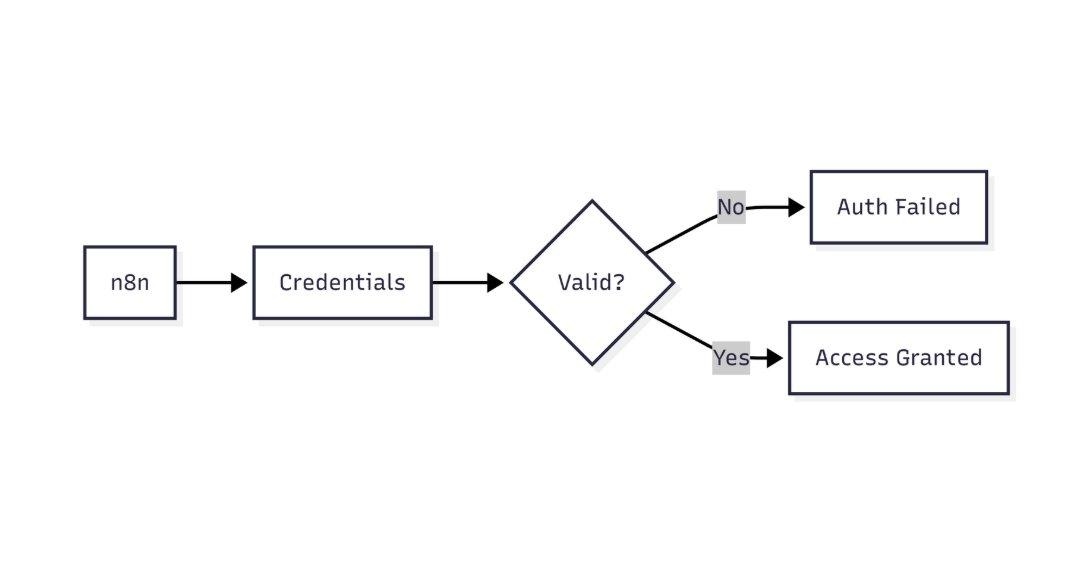
This diagram highlights how n8n verifies MongoDB credentials before allowing database access
| Root Cause | n8n Trigger |
|---|---|
| Wrong username/password | Sends stored credentials → immediate failure |
| Wrong Authentication Database | Defaults to target DB if left blank |
| Mismatched Auth Mechanism | n8n uses selected mechanism; blank → guess based on version |
| IP/Network not whitelisted | Cloud MongoDB (Atlas, Azure) rejects the connection before auth |
| Insufficient user roles | Auth succeeds, but subsequent ops are rejected, appearing as auth errors |
EEFA Note: Never store plain‑text passwords in
.env. Use n8n’s Encrypted Credentials or a secret manager (e.g., HashiCorp Vault). Troubleshoot common n8n MongoDB authentication issues, including failed logins and replica set connection errors with this n8n cannot authenticate to mongodb database.
2. Verify Your Credentials
2.1 Test with the MongoDB shell
mongo \
  -u "<USERNAME>" \
  -p "<PASSWORD>" \
  --authenticationDatabase "<AUTH_DB>" \
  --host "<HOST>:<PORT>"
*Success*: You land in the MongoDB prompt (>).
*Failure*: The shell prints Authentication failed. – double‑check the three values.
2.2 Validate via a tiny Node.js script
const { MongoClient } = require('mongodb');

(async () => {
  const uri = 'mongodb://<USER>:<PASS>@<HOST>:<PORT>/<DB>?authSource=<AUTH_DB>&authMechanism=SCRAM-SHA-256';
  const client = new MongoClient(uri, { useUnifiedTopology: true });
  try { await client.connect(); console.log('✅ Connected'); }
  catch (e) { console.error('❌', e.message); }
  finally { await client.close(); }
})();
*Tip*: Switch authMechanism to SCRAM-SHA-1 for MongoDB < 4.0.
3. Configure n8n’s MongoDB Credential
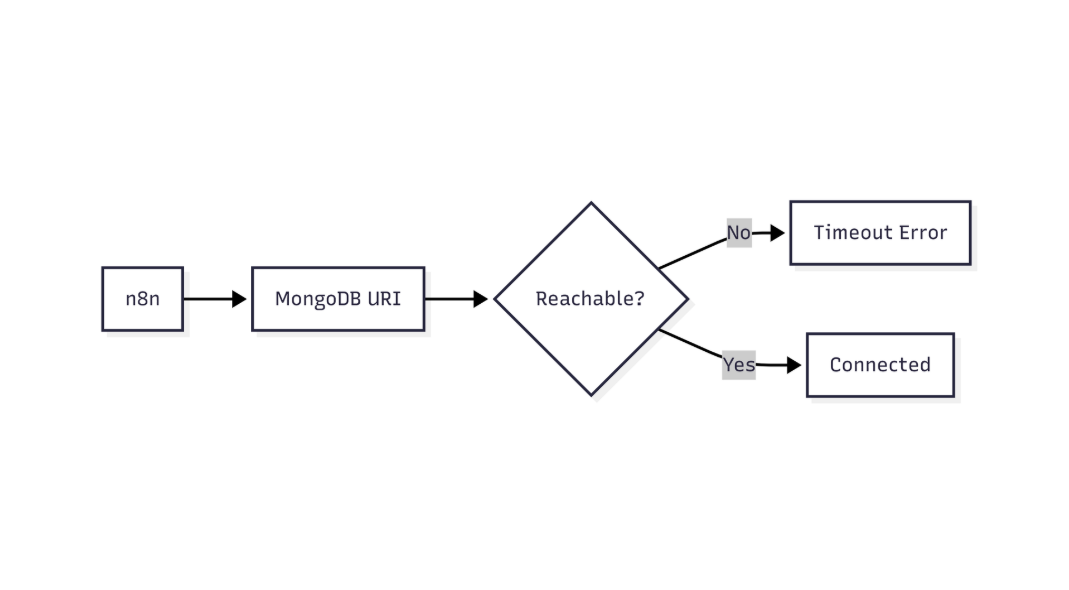 This flow shows how n8n validates MongoDB connectivity and identifies network or connection-level failures
3.1 Credential fields – what to fill
| Field | Correct value | Common pitfall |
|---|---|---|
| Host | cluster0.mongodb.net (no protocol) | Adding mongodb:// creates a duplicate protocol |
| Port | 27017 (default) | Leaving blank is fine for most setups |
| Database | Target DB (e.g., myapp) |
Not the auth DB |
| Authentication Database | DB that stores the user (admin in most cases) |
Empty → n8n uses target DB → auth fails |
| Username | Exact case‑sensitive name | Typos or wrong case |
| Password | Entered via UI – stored encrypted | Plain‑text in .env |
| Auth Mechanism | SCRAM‑SHA-256 (MongoDB 4.0+) or SCRAM‑SHA‑1 (older) | Leaving “Default” on a mixed‑version cluster may pick the wrong one |
| TLS/SSL | Enable if your cluster requires it and upload the CA cert | Skipping leads to “SSL handshake failed” which looks like auth trouble |
After filling, click Test – a successful listCollections call shows a green check.
4. Advanced Troubleshooting Checklist
| Done? | Action |
|---|---|
| ☐ | Verify username/password with the shell (2.1) |
| ☐ | Confirm Authentication Database matches the user’s source DB |
| ☐ | Set the exact Auth Mechanism |
| ☐ | Whitelist the n8n host IP in Atlas/Cloud provider |
| ☐ | Ensure the user has readWrite on the target DB (or appropriate roles) |
| ☐ | If TLS is required, upload a trusted CA certificate |
| ☐ | Inspect n8n logs (docker logs <container> or ~/.n8n/logs) for MongoDB error codes |
| ☐ | Run the Node.js validation script (2.2) |
| ☐ | Restart n8n after any credential change (some deployments cache credentials) |
5. Real‑World Fix: Atlas‑Hosted Auth Failure
Problem – n8n Docker container used default auth mechanism and left Authentication Database blank, causing SCRAM‑SHA‑256 mismatch. Troubleshoot common n8n MongoDB authentication issues, including failed logins and replica set connection errors with this n8n mongodb replica set connection error.
5.1 Add the missing environment variables
services:
  n8n:
    image: n8nio/n8n
    environment:
      - N8N_MONGODB_HOST=cluster0.mongodb.net
      - N8N_MONGODB_PORT=27017
      - N8N_MONGODB_DATABASE=myapp
      - N8N_MONGODB_AUTH_DATABASE=admin          # <-- added
      - N8N_MONGODB_USER=appUser
      - N8N_MONGODB_PASSWORD=${MONGO_PASS}
- N8N_MONGODB_AUTH_MECHANISM=SCRAM-SHA-256 # <-- forced
1. Added N8N_MONGODB_AUTH_DATABASE=admin.
2. Forced SCRAM-SHA-256.
3. Restarted the container → Authentication succeeded.
EEFA Insight: When using env vars, n8n does not infer the auth mechanism; you must set it explicitly for newer servers.
6. Deeper Diagnostics
6.1 Enable debug logging
# Docker example
docker run -e DEBUG=n8n:core ... n8nio/n8n
Look for lines such as:
MongoError: Authentication failed. code=18
– code=18 → Invalid credentials.
– code=13 → Unauthorized (role issue).
6.2 Test with mongosh (Atlas command‑line tool)
mongosh "mongodb+srv://cluster0.mongodb.net/myapp" \
  --username appUser --password <PASS> --authenticationDatabase admin
If this connects, the server is fine and the problem lies in n8n’s credential mapping.
6.3 Verify driver compatibility
n8n versions < 0.210 use an older MongoDB driver that does not support SCRAM‑SHA‑256. Upgrade n8n if you run an older release.
7. Prevent Future Failures
- Rotate passwords via a secret manager and update n8n credentials through the REST API (
/credentials). - Document the auth DB in your architecture diagram – avoid “default to target DB” assumptions.
- Automate a health‑check workflow that runs a simple
findon a “heartbeat” collection every 5 minutes; alert on failure.
7.1 Example health‑check workflow (JSON)
MongoDB “find” node
{
  "type": "n8n-nodes-base.mongodb",
  "parameters": {
    "operation": "find",
    "collection": "heartbeat",
    "options": {}
  },
  "credentials": {
    "mongoDb": "MongoDB (Production)"
  }
}
Email alert node
{
  "type": "n8n-nodes-base.emailSend",
  "parameters": {
    "toEmail": "ops@example.com",
    "subject": "⚠️ MongoDB Auth Failure Detected",
    "text": "The health‑check workflow could not authenticate to MongoDB."
  }
}
Conclusion
Authentication failures in n8n are almost always a matter of credential mismatch – wrong username/password, missing authentication database, or an incorrect auth mechanism. By:
- Verifying credentials directly with MongoDB tools,
- Setting the precise Authentication Database and Auth Mechanism in n8n,
- Ensuring network access and proper user roles,
you can resolve the error quickly and safeguard against recurrence with secret‑manager rotation and automated health checks. These steps have been validated on n8n 0.228 (Docker), MongoDB Atlas 6.0, and self‑hosted MongoDB 5.0 in production environments.