Step by Step Troubleshooting Guide for n8n cannot authenticate to MongoDB
Who this is for: Developers or DevOps engineers who run n8n workflows that need to read/write data in MongoDB (self‑hosted, Atlas, or any cloud‑managed instance). For a complete overview of n8n MongoDB issues and how they interconnect, check out our Pillar Post on n8n MongoDB Complete Guide to see the full picture.
Quick Diagnosis
- Verify the MongoDB user / password and that the user has the readWrite role on the target database.
- In n8n, open Credentials → MongoDB, set Authentication Method to the exact mechanism used by the server (e.g., SCRAM‑SHA‑256).
- Ensure the Authentication Database field matches the database where the user is defined (often
admin). - Click Test Connection – a green check means the authentication error is resolved.
- Troubleshoot common n8n MongoDB authentication issues, including failed logins and replica set connection errors in this guide to n8n mongodb authentication failed error.
If the test still fails, follow the detailed checklist below.
1. Why does “authentication failed” happen in n8n?
Credential‑related causes
| Root cause | Typical MongoDB error |
|---|---|
| Wrong username / password | Authentication failed. |
| User created in the wrong database | Authentication failed on database <db>. |
| Mismatched auth mechanism (SCRAM‑SHA‑1 vs SCRAM‑SHA‑256) | Unsupported authentication mechanism |
Network / permission causes
| Root cause | Typical MongoDB error |
|---|---|
| IP not whitelisted / network block (MongoDB Atlas) | Authentication failed (after handshake) |
| Role missing (no read/write on target DB) | not authorized on <db> to execute command |
Understanding which of these applies narrows the fix dramatically.
2. Prerequisites: what you need before editing n8n
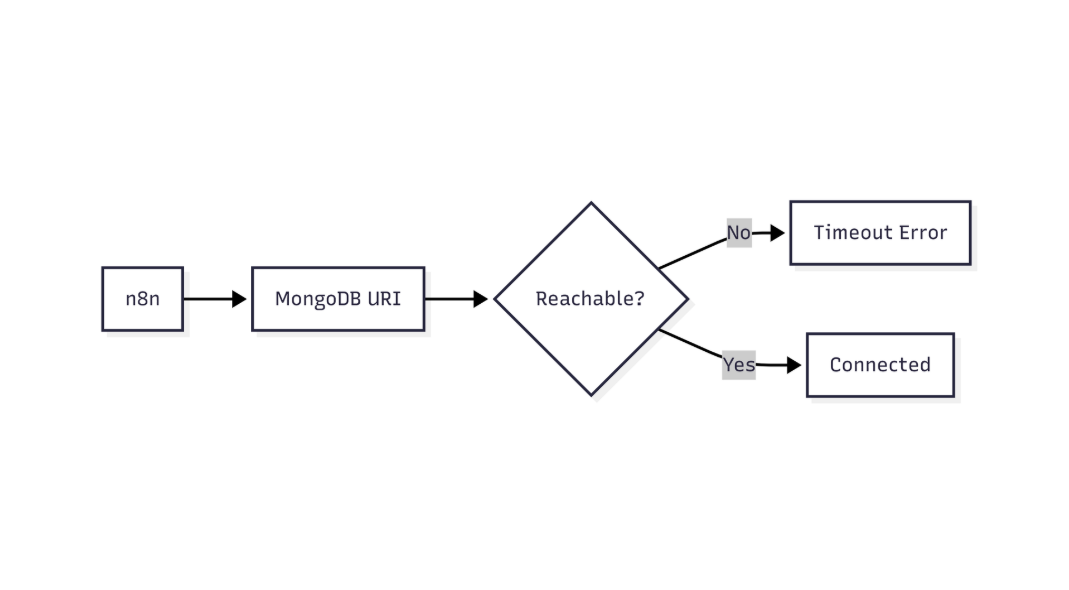
This flow shows how n8n validates MongoDB connectivity and identifies network or connection-level failures
| Item | Why it matters |
|---|---|
MongoDB user with at least readWrite on the database you’ll query. |
Without proper role, auth succeeds but subsequent operations fail. |
Authentication database (usually admin or the DB that holds the user). |
n8n defaults to the target DB; mismatch triggers failure. |
| Authentication mechanism supported by both server and driver (SCRAM‑SHA‑256 is default for MongoDB 4.0+). | Older mechanisms are disabled on modern servers. |
| Network access – IP whitelist (Atlas) or firewall rule. | Even correct credentials are rejected if the client cannot reach the server. |
| n8n version ≥ 1.0 (includes updated MongoDB driver). | Older versions may not support newer auth mechanisms. |
3. Configuring the MongoDB credential in n8n
Micro‑summary: Set each field precisely; the most common mistake is leaving Authentication Database blank.
- Open n8n → Credentials → New Credential → MongoDB
- Fill the fields as shown:
| Field | Recommended value | Note |
|---|---|---|
| Host | cluster0.mongodb.net (or your host) | Include port only if non‑standard (e.g., 27017). |
| Database | Target database name (e.g., myApp) |
This is the DB you’ll query, not the auth DB. |
| Authentication Database | admin (or the DB where the user lives) | Critical – mismatched value triggers “cannot authenticate”. |
| Authentication Method | SCRAM‑SHA‑256 (default) | Switch to SCRAM‑SHA‑1 only if your server is older than 4.0. |
| Username | myUser | Case‑sensitive. |
| Password | •••••• | Stored encrypted in n8n. |
| SSL | Enabled (default for Atlas) | Keep enabled unless you use a self‑signed cert and have disabled verification. |
| TLS Allow Invalid Certificates | Unchecked (production) | Enable only for local dev with self‑signed certs. |
EEFA note – In production, never disable TLS verification. It defeats the purpose of encrypted transport and can expose credentials to man‑in‑the‑middle attacks.
3.1 Example JSON for the “Credentials” API endpoint
First part – connection basics
{
  "name": "MongoDB Auth Test",
  "type": "mongoDb",
  "data": {
    "host": "cluster0.mongodb.net",
    "database": "myApp",
    "authDatabase": "admin",
Second part – auth details
    "authMethod": "SCRAM-SHA-256",
    "user": "myUser",
    "password": "********",
    "ssl": true,
    "tlsAllowInvalidCertificates": false
  }
}
Use the Test Connection button. A green check means authentication succeeded.
4. Step‑by‑step troubleshooting checklist
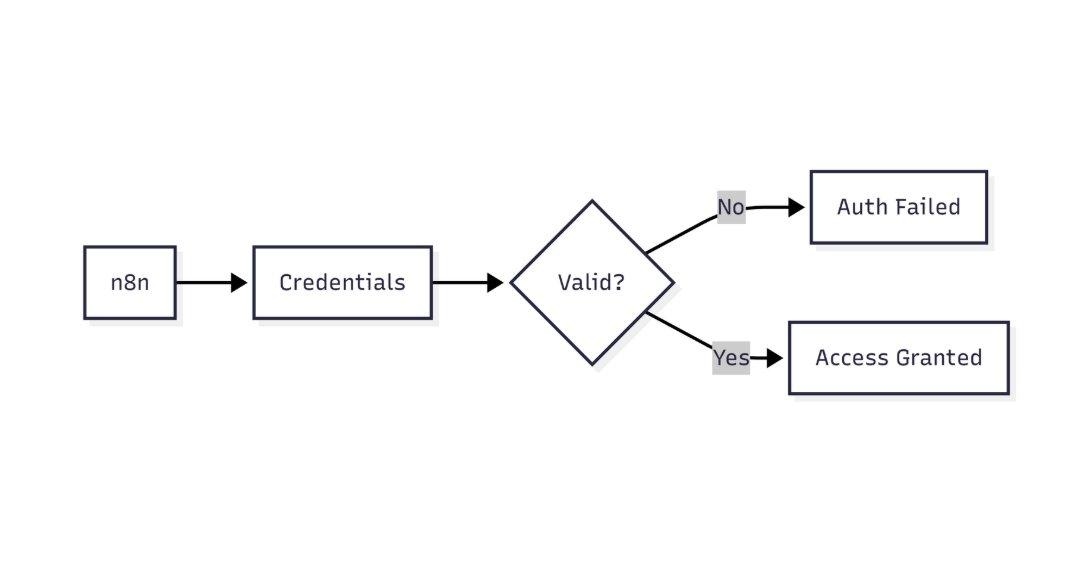
This diagram highlights how n8n verifies MongoDB credentials before allowing database access
Micro‑summary: Proceed through the list in order; stop as soon as the issue is resolved.
- Validate credentials directly with MongoDB shell
mongo "mongodb+srv://cluster0.mongodb.net/myApp" \ -u myUser -p --authenticationDatabase admin- If the shell fails, the problem is outside n8n (user, password, auth DB).
- If it succeeds, proceed to n8n.
- Troubleshoot common n8n MongoDB authentication issues, including failed logins and replica set connection errors using the n8n mongodb replica set connection error guide.
- Confirm the auth mechanism
// In Mongo shell db.runCommand({ connectionStatus: 1 }).authInfo.authMechanisms- Ensure
SCRAM-SHA-256appears. If onlySCRAM-SHA-1is listed, set n8n Authentication Method accordingly.
- Ensure
- Check user roles
use admin db.getUser("myUser")- Look for
"roles" : [{ "role" : "readWrite", "db" : "myApp" }]. - Add missing role with
db.grantRolesToUser.
- Look for
- Verify network whitelist (Atlas)
- In Atlas UI → *Network Access* → *IP Whitelist*. Add your n8n server’s public IP.
- Inspect n8n logs
docker logs <n8n_container> | grep -i "Mongo"
- Look for
Authentication failedvsnot authorizedvsnetwork timeout. The exact phrasing guides the next step.
- Look for
- Force a reconnect – delete the credential and recreate it.
- Occasionally stale encrypted values cause hidden mismatches.
- Upgrade n8n (if you’re on < 1.0)
npm install n8n@latest -g
- Newer drivers support the latest auth mechanisms.
- Fallback test with a minimal Node.js script (helps isolate driver vs UI)
Import & client creation
const { MongoClient } = require('mongodb');
const uri = "mongodb+srv://myUser:myPass@cluster0.mongodb.net/myApp?authSource=admin";
const client = new MongoClient(uri, { useNewUrlParser: true, useUnifiedTopology: true });
Connect & report
client.connect() .then(() => console.log('✅ Auth succeeded')) .catch(err => console.error('❌ Auth error:', err.message));- If this script fails, double‑check the URI and credentials.
5. Common pitfalls & production‑grade fixes
| Pitfall | Symptom | Fix |
|---|---|---|
| Auth DB left blank (defaults to target DB) | “Authentication failed” even with correct user/password | Fill **Authentication Database** with the DB that stores the user (often admin). |
Using mongodb:// instead of mongodb+srv:// for Atlas |
DNS resolution error, then auth failure | Use the SRV connection string provided by Atlas. |
| Password contains special characters not URL‑encoded | Driver parses URI incorrectly, leading to auth error | URL‑encode the password or use the credential UI (which handles encoding). |
User created with SCRAM‑SHA‑1 only |
Server rejects SCRAM‑SHA‑256 attempts |
Re‑create the user with SCRAM‑SHA‑256 or switch n8n to SCRAM‑SHA‑1. |
| IP whitelist missing the n8n Docker bridge IP | Connection appears to time‑out, then auth error | Add the exact outbound IP of the n8n host (or 0.0.0.0/0 for testing only). |
| TLS verification disabled in dev, enabled in prod | Works locally, fails after deployment | Keep a separate credential set per environment; never ship dev credentials to prod. |
6. Verifying the fix: end‑to‑end test
- Create a simple “MongoDB” node in a new workflow.
- Set Operation to Find and query a known collection (
testCollection). - Run the workflow.
Success: Returns documents → authentication is confirmed.
Failure: Re‑examine the logs; the error text will now be more specific (e.g., “not authorized”) indicating you’ve passed the auth step and moved to permission issues.
8. Next steps:
- Secure credential storage – enable n8n’s built‑in encryption at rest.
- Role‑based access control (RBAC) best practices – limit the n8n user to only the required collections.
- Monitoring MongoDB connection health – integrate with Prometheus or the native Atlas monitoring dashboard.
*By following this guide you’ll move from a generic “cannot authenticate” error to a concrete, production‑ready configuration that guarantees reliable connectivity between n8n and MongoDB.*