Step by Step Guide to Fix the Unsupported Operator Error in n8n MongoDB Nodes
Who this is for: n8n workflow developers who use the MongoDB node and encounter “Unsupported operator” errors during aggregation or find operations. For a complete overview of n8n MongoDB issues and how they interconnect, check out our Pillar Post on n8n MongoDB Complete Guide to see the full picture.
Quick Diagnosis
| Step | Action | Result |
|---|---|---|
| 1 | Verify the MongoDB server version (≥ 4.2 for $lookup pipelines, $expr, etc.) |
Confirms operator support |
| 2 | Open the n8n MongoDB node → Operation → Custom Query | Enables raw query editing |
| 3 | Replace the failing operator with a supported alternative or restructure the pipeline | Removes the error |
| 4 | Save the node and Run Workflow → No error → Data flows correctly | Issue resolved |
Snippet – The error appears when a query uses an aggregation operator that the connected MongoDB version (or n8n’s driver) does not recognize. Ensure version compatibility, then adjust the query or upgrade MongoDB.
1. What the Error Means
When the MongoDB node sends a JSON payload to the native driver, MongoDB validates every operator. If the server does not recognize an operator, it returns:
MongoError: Unsupported operator: <operator_name>
Common triggers:
- Newer aggregation operators on an older server (e.g.,
$setWindowFieldson MongoDB 4.4). - Operators placed in the wrong stage (e.g.,
$geoNearinside afind). - Simple typos (
$matchh).
The workflow stops and the error node turns red.
2. Identify the Root Cause
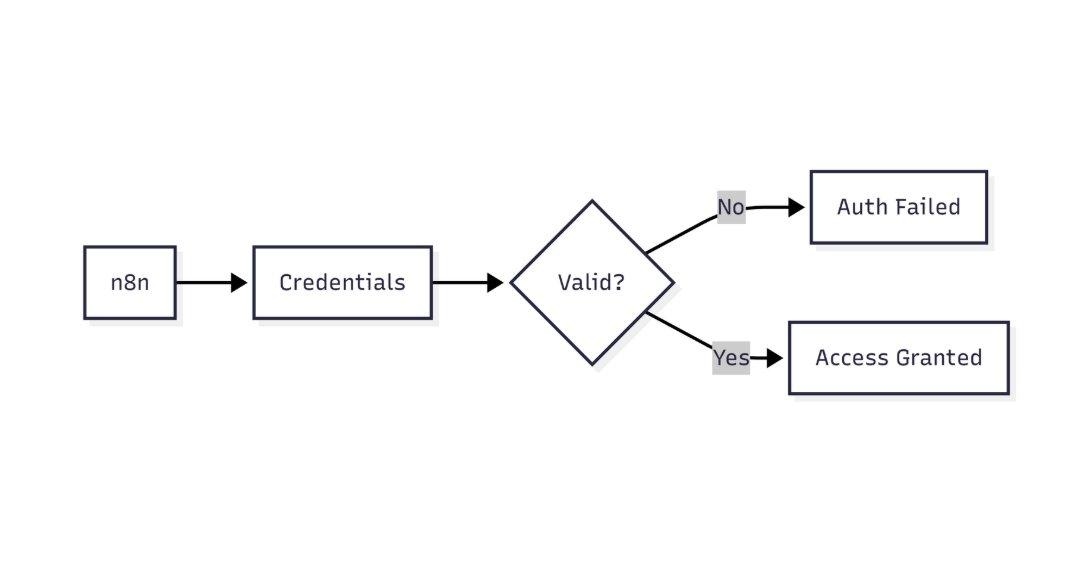
This diagram highlights how n8n verifies MongoDB credentials before allowing database access
Goal – Match the symptom to its most likely cause and verify it quickly.
| Symptom | Likely Cause | Verification |
|---|---|---|
Unsupported operator: $setWindowFields |
Server < 5.0 | Run db.version() in the shell |
Unsupported operator: $lookup inside $match |
Using pipeline $lookup on MongoDB 3.6 |
Check node Operation → Aggregation → Pipeline |
Unsupported operator: $geoNear in a find query |
$geoNear belongs to aggregation only |
Inspect the JSON – first stage must be $geoNear |
| Misspelled operator | Typo in custom query | Open Custom Query and compare with docs |
3. Resolve the Issue
3.1 Confirm Server Compatibility
- Open MongoDB Shell or Compass.
- Execute the version command:
db.version()
Compare the result with the minimum version required for the operator (see Table 1).
Table 1 – Minimum MongoDB Versions
| Operator | Minimum Version |
|---|---|
$setWindowFields |
5.0 |
$replaceRoot |
3.4 |
$lookup (pipeline) |
3.6 |
$expr |
3.6 |
$geoNear (aggregation) |
2.4 |
$facet |
3.4 |
$unionWith |
4.4 |
If your server is older, upgrade MongoDB or rewrite the query using supported operators.
When working with n8n MongoDB integration, common operational errors include duplicate key, unsupported operator, and document not found issues check this out: n8n mongodb duplicate key error
3.2 Refactor the Query in n8n
- Open the failing MongoDB node.
- Switch to Custom Query mode.
- Replace the unsupported stage with an equivalent that the server understands.
Example: Replace $setWindowFields (MongoDB 5.0)
Group documents by customer and collect orders
{
  "aggregate": "orders",
  "pipeline": [
    {
      "$group": {
        "_id": "$customerId",
        "orders": { "$push": "$$ROOT" }
      }
    }
  ],
  "options": {}
}
Project the count of orders per customer
{
  "pipeline": [
    {
      "$project": {
        "customerId": "$_id",
        "orderCount": { "$size": "$orders" },
        "_id": 0
      }
    }
  ]
}
Combine the two snippets in the node’s pipeline array.
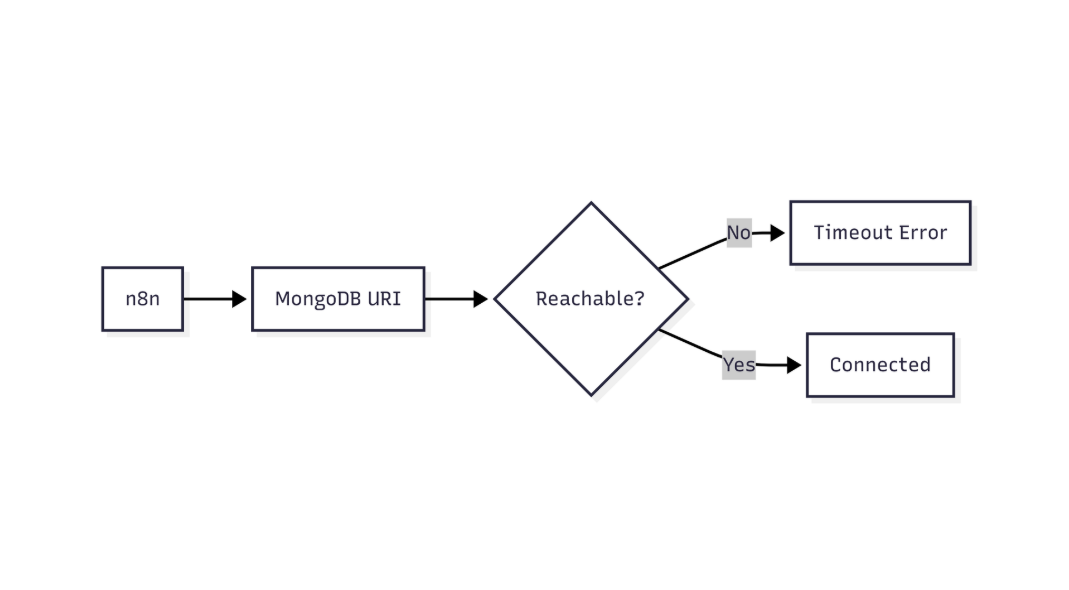
This flow shows how n8n validates MongoDB connectivity and identifies network or connection-level failures
3.3 Test the Fixed Node
- Click Execute Node.
- If the result set appears without errors, click Save.
- Run the full workflow to verify downstream nodes receive the expected data.
3.4 Deploy Safely
- Add a Try/Catch workflow to capture future operator mismatches.
- Log the raw query before execution (e.g., a Set node with
{{$json}}).
4. Advanced Troubleshooting Checklist
- Version mismatch – Server meets the operator’s minimum version.
- Spelling – No typos in operator names.
- Stage order –
$lookupwith a pipeline must appear where allowed. - Node type – Use Aggregation mode for pipeline operators, not Find.
- Driver support – n8n uses the
mongodbnpm driver v4.x; confirm it supports the operator. - Permissions – User role includes
readWriteon the target collection.
If everything checks out and the error persists, capture the full stack trace and open a GitHub issue with the details below:
n8n version: x.x.x
MongoDB driver version: 4.x
MongoDB server version: y.y.y
Node configuration (JSON)
5. Preventing Future Errors
- Lock the MongoDB version in your infrastructure (Docker, Terraform) and document the required minimum.
- Add a version guard node at the start of the workflow:
// Function node – abort if server is too old const minVersion = "4.2.0"; const serverVersion = $node["MongoDB"].json.version; if (serverVersion < minVersion) { throw new Error( `MongoDB ${serverVersion} is older than required ${minVersion}. Upgrade.` ); } return {}; - Subscribe to MongoDB release notes to stay aware of new operators.
- Validate pipelines in the MongoDB Shell before copying them into n8n
Conclusion
The “Unsupported operator” error is a version‑compatibility signal. By confirming the server’s MongoDB version, swapping out unsupported stages with equivalent, supported constructs, and adding guard checks, you can eliminate the error and keep your workflows stable in production. Maintaining version lock‑downs and testing pipelines early prevents recurrence, ensuring reliable data movement through n8n’s MongoDB node. When working with n8n MongoDB integration, common operational errors include duplicate key, unsupported operator, and document not found issues, this gives a comprehensive Breakdown: n8n mongodb document not found error.